
Black FridayUp to 31% off Team plansCode
Share your experience with the founderhere!

Nishil Patel
Sep 18, 2026
4 min read
Last Updated Sep 18, 2026

Check out the easy steps to create dev-friendly bug reports as Work Items on Azure. Learn how BetterBugs can help automate the gruntwork for your bug reporting workflows while managing projects on Azure DevOps Boards.
1.
Introduction
2.
What are Azure Work Items and How They are Used for Bug Reporting?
3.
How BetterBugs.io Can Help
4.
How to Create Bug Reports as Azure Work Items in a Few Clicks: Easy Steps
5.
FAQs
In this article, we've covered the easy steps to create Azure Work Items for bug reporting using BetterBugs. You'll also learn what Azure Work Items are and how to set up a workflow for automatic bug reporting that saves time while providing developers with all the details they need to fix issues fast.
Azure Work Items are units of work that software teams use to track tasks, features, requirements, and bugs in Azure Boards.
For bug reporting, Azure provides a specific Work Item type called "Bug". This Bug work item type includes all the standard features of other work items plus special features for tracking code defects.
Also Read: What are Issue Types in Jira?
Also Read: What are Sprint Retrospectives in Agile Scrum? With Steps to Run
When you create a Bug work item in Azure Board, you typically add details like the bug description, steps to reproduce, priority level, and assign it to a team member. The bug then moves through your team's workflow until it gets fixed and closed.
The key challenge is the manual creation of these work items, which takes massive time and effort; gathering screenshots, system info, console logs, and other technical details, and what not, aiming to provide developers with critical info and enough context to debug and resolve issues. This is where bug reporting tools, such as BetterBugs make the process much faster and more complete.
Also Read: How to Write Effective Bug Reports: [Step-by-Step Guide]
BetterBugs is a lightweight and free chrome extension that enables you to create bug reports as work items in Azure DevOps boards.
Whenever you need to add a bug report to your Azure project, you can take a screenshot or record the screen of the bug using BetterBugs.io. You also have the “Rewind” button that gives you the last 2-minute of video recording of all browser activities without proactively starting to record; perfect for issues that just happened or intermittent issues.
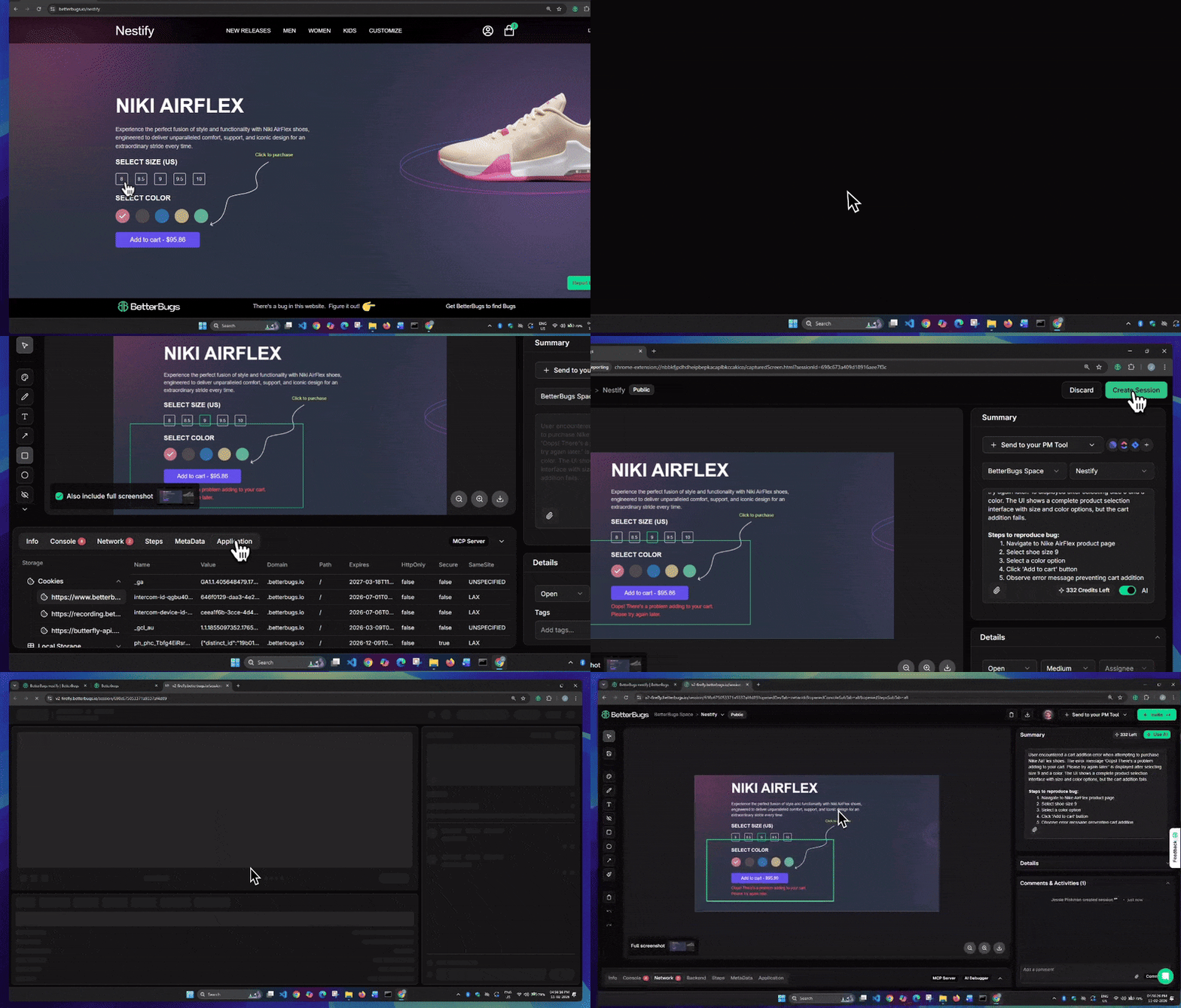
Create a Bug Report Instantly that you Quickly Share to Azure Boards (via as a link), Right from Your Browser | Video Demo
The technical details of the issue are auto-captured and attached to the report by BetterBugs.io.
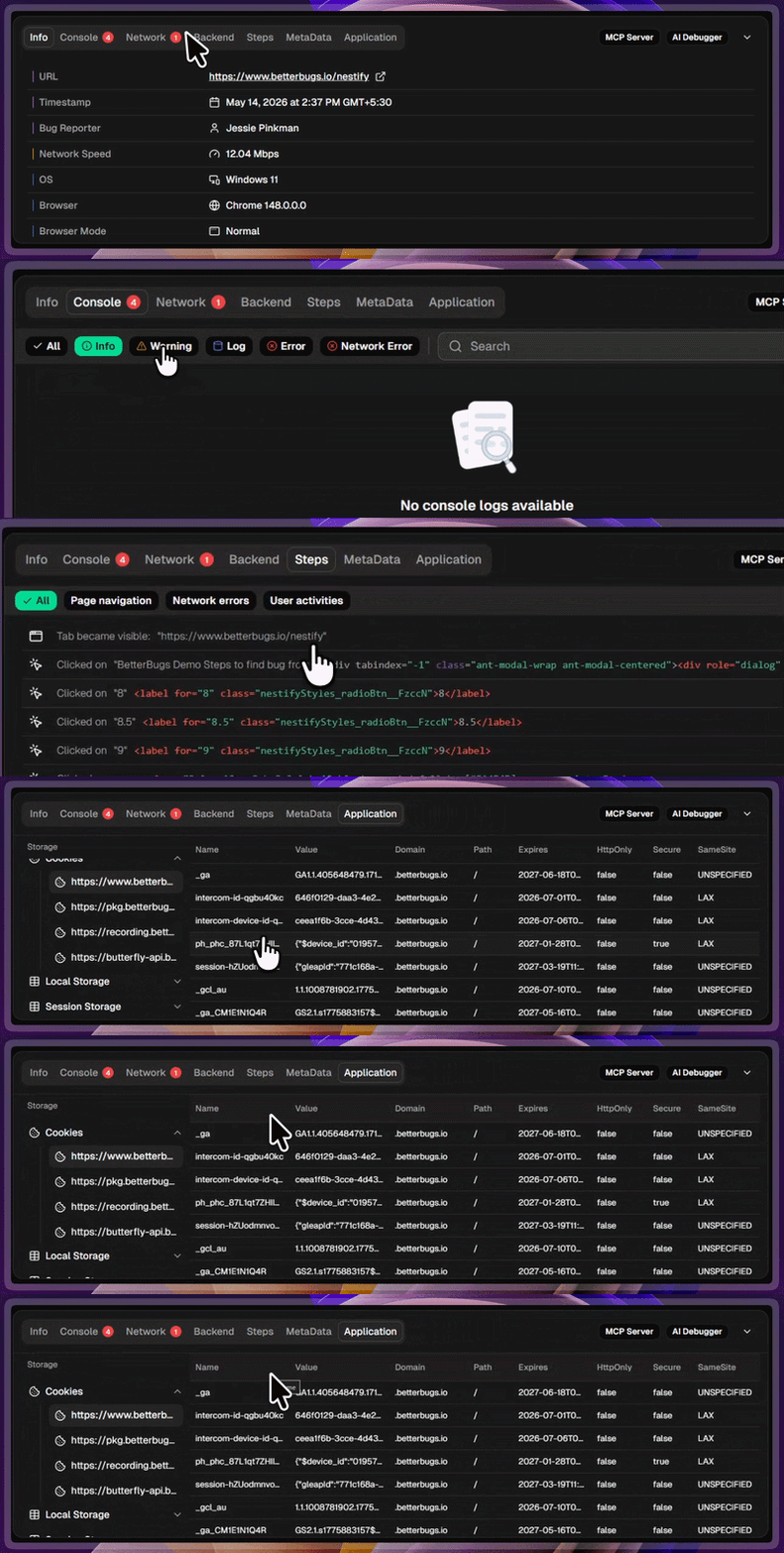
Auto-attached debugging details and logs with every bug report
The details include:
You do not have to add these manually for bug reporting. BetterBugs auto-includes these details for you in every bug report whenever you grab a screenshot or a screen recording of the issue.
Plus, in your report, you can use “AI” to instantly add:
Quick Sharing: You can share the context-rich and developer-friendly report right from your browser directly to your Azure Board. No manual copy-pasting or juggling tools is required.
It’s perfect for technical and non-technical users for bug reporting and bug tracking workflows.
Visual Bug Reporting, Bug Tracking, UI/UX Issue reporting, Bug Bash, Beta Testing, Debugging (manual or using AI Debugger or MCP Server), Getting Customer Feedback (using the Feedback Widget for Web Apps), Software Testing, QA overall.
You can also integrate BetterBugs with your preferred project management tools (Jira, Asana, Trello, and others), communication tools (Slack and Microsoft Teams), and issue trackers (GitHub, GitLab, and many others)
Using BetterBugs bug reports, you can:
Your BetterBugs account will house all your bug reports in a dedicated Workspace and Project within BetterBugs, accessible and shareable right from your browser.
1. Go to Workspace Settings > Integrations: Click BetterBugs Workspace name (top-left) > Gear icon > Workspace Settings > Integrations.
2. Open Azure: In the Integrations tab, search Azure.
3. Enable Per-Project Integration: Toggle off All Projects (disables the default workspace-wide setup) and click Continue. You will now see the "Manage per project" option.
4. Connect Project: Look for a BetterBugs Project to connect from the list and click Connect in the "Actions" column.
5. Authorize: Authorize BetterBugs.io for your Azure Workspace. [Important Note for Free Plan: Steps 6 and 7 are for paid plans (Teams and Enterprise) only. If you are on a free plan, you can skip these steps and proceed directly to creating bug reports.]
6. Choose Your Ticket Creation Method (For Paid Plans Only): From the "Forward Bug Reports" dropdown, you can select how to handle Azure fields (Organization, Project, Type, etc.):
7. Connect: Select your preferred method from the dropdown (e.g., Manually) and click Connect.
This completes the one-time integration part. Now you’re ready to create your first bug report as an Azure work item(s).
1. Capture and Add Bug Details: Use the BetterBugs extension to capture the bug. In the description area, add the bug details (Title, Quick Summary, and Steps to Reproduce) either manually or automatically using the AI toggle.
2. Select Your Workspace and Project: From the two dropdowns located above the description area, choose your BetterBugs Workspace and the specific BetterBugs Project integrated with Azure.
3. Select Azure: Click “+ Send to your PM Tool” dropdown and select “Azure Work Item”.
4. Populate Azure Fields: Fill in the ticket details for Azure (such as Organization, Project, and Type), then click Next.
5. Create Session: Click “Create Session” in the top right corner to generate your bug report.
A new browser tab opens with the new Azure Work Item that you just created. The work item includes details, such as “Reported by, Source URL, Issue details (link to the complete report), Console, Network, and system and device info)”.
Nishil is a successful serial entrepreneur. He has more than a decade of experience in the software industry. He advocates for a culture of excellence in every software product.
Meet the Author: Nishil Patel, CEO, and Co-founder of BetterBugs. With a passion for innovation and a mission to improve software quality.
We never spam.