
Share your experience with the founderhere!

Nishil Patel
Sep 21, 2026
5 min read
Last Updated Sep 21, 2026

Check out the easy steps to create developer-friendly bug reports on GitHub as GitHub Issues using BetterBugs tool in minutes, not hours. Learn more on why BetterBugs.io fits perfectly as an everyday bug reporting tool for all your QA activities.
1.
Introduction
2.
What are GitHub Issues?
3.
How BetterBugs.io can help - Free Bug Reporting Chrome Extension for GitHub
4.
How to create bug reports in GitHub Issues: Easy Steps
5.
FAQs
When you find a software bug, reporting it is the first step to getting it fixed. If your project is hosted on GitHub, this means creating a "GitHub Issue". However, creating an effective bug report with the traditional process is way too much work . You have to take screenshots manually, write down the exact steps you took, and gather technical details like your OS, browser version, console logs, network request details, and other devtools errors that you’re getting.
This gruntwork is often cumbersome, tedious, and error-prone — missing info or inconsistent formatting can slow things down for both the reporter and the developer trying to fix the bug. And this is exactly where BetterBugs.io comes in. It’s a lightweight and free bug reporting tool that automates all these steps.
In this article, we’ve covered the practical steps to create and share bit-perfect, context-rich, and technically precise bug reports on GitHub as GitHub issues using the BetterBugs.io tool. It’s perfect for all your bug reporting and debugging workflows while you build awesome apps.
In simple terms, GitHub Issues is a built-in feature within every GitHub repository that acts as an issue or bug tracking system. Think of it as a dedicated discussion forum for a software project where Quality Assurance (QA) engineers, testers, developers, contributors, and end-users can report bugs, suggest new features, ask questions, or track tasks.
GitHub’s adoption is immense. From solo developers and open-source contributors to enterprise teams — more than 100 million developers rely on GitHub as their daily workhorse to build, collaborate, and ship software.
For reporting and bug tracking, GitHub provides a central and intuitive way (as GitHub Issues) where bugs can be reported, discussed, assigned to a team member, and tracked until they are resolved, making it one of the most effective tools for collaboration in software.
Also Read: GitHub vs GitLab: Winner!
BetterBugs is a visual bug reporting tool that enables you to create developer-friendly bug reports and share instantly as GitHub issues.
You can download it as a free Chrome extension. BetterBugs.io a no-code tool suitable for both technical and non-technical users.
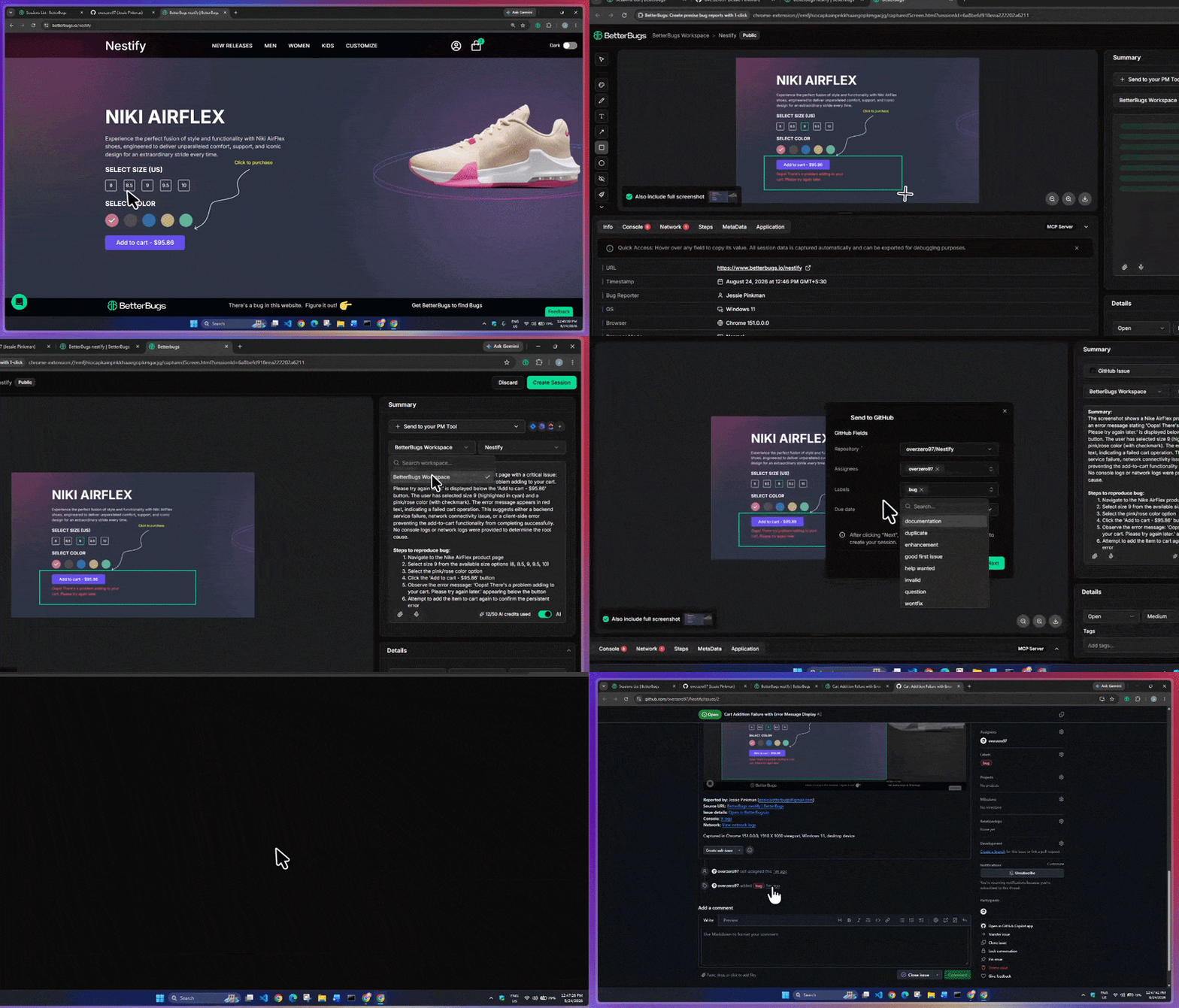
Create a Bug Report and Add to GitHub as an Issue for Bug Tracking | Video Demo
Bug tracking, bug reporting, UI/UX Reviews, Website feedback tool (using Feedback Widget), Beta testing, AI Debugging (using built-in AI Debugger and MCP Server), QA and software testing overall.
Apart from GitHub, you can also integrate BetterBugs with 15+ project tools (project management, issue trackers, and collaboration), such as:
Whenever you take a screenshot or record a screen of an issue (using BetterBugs.io), it automatically gathers all the technical details, such as console logs, network requests, meta and device info and bundles it to your bug report.
You can add the text details (summary and steps to reproduce) using AI and instantly share with others (using the report link) or to directly your GitHub repo.
Every report packs in:
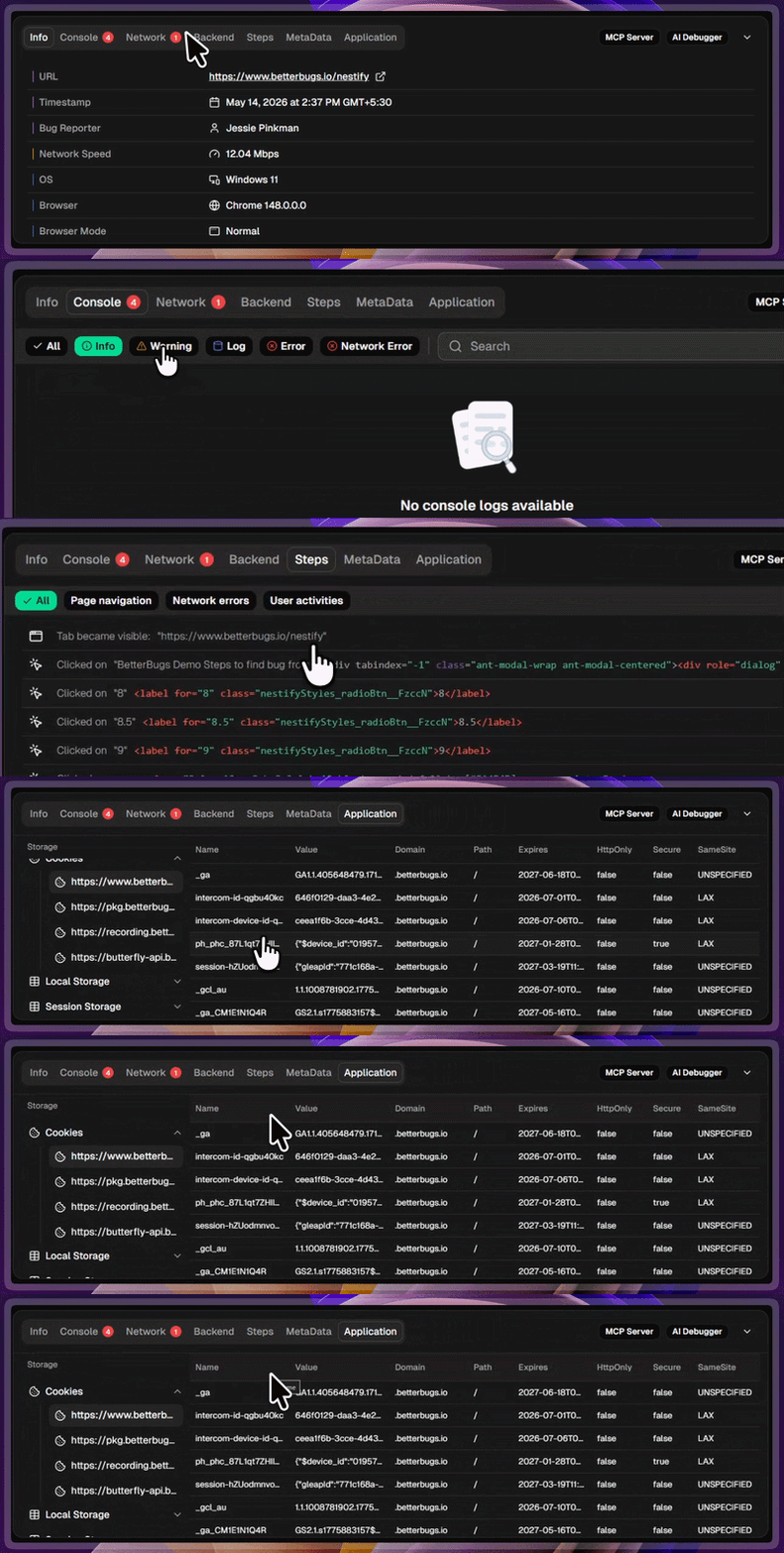
Auto-attached Developer Logs with Every Bug Report
Developers can use the context-rich and technically sound bug reports with all the information they need to start debugging manually or with AI.
To get started, download the BetterBugs extension from the Chrome web store. Signup using your email. You can also use your Google or GitHub account instead. This enables you to create your own BetterBugs dashboard to manage reports from a central Workspace.
Pin the extension on your browser for quick access.
Integrating BetterBugs with GitHub is super simple:
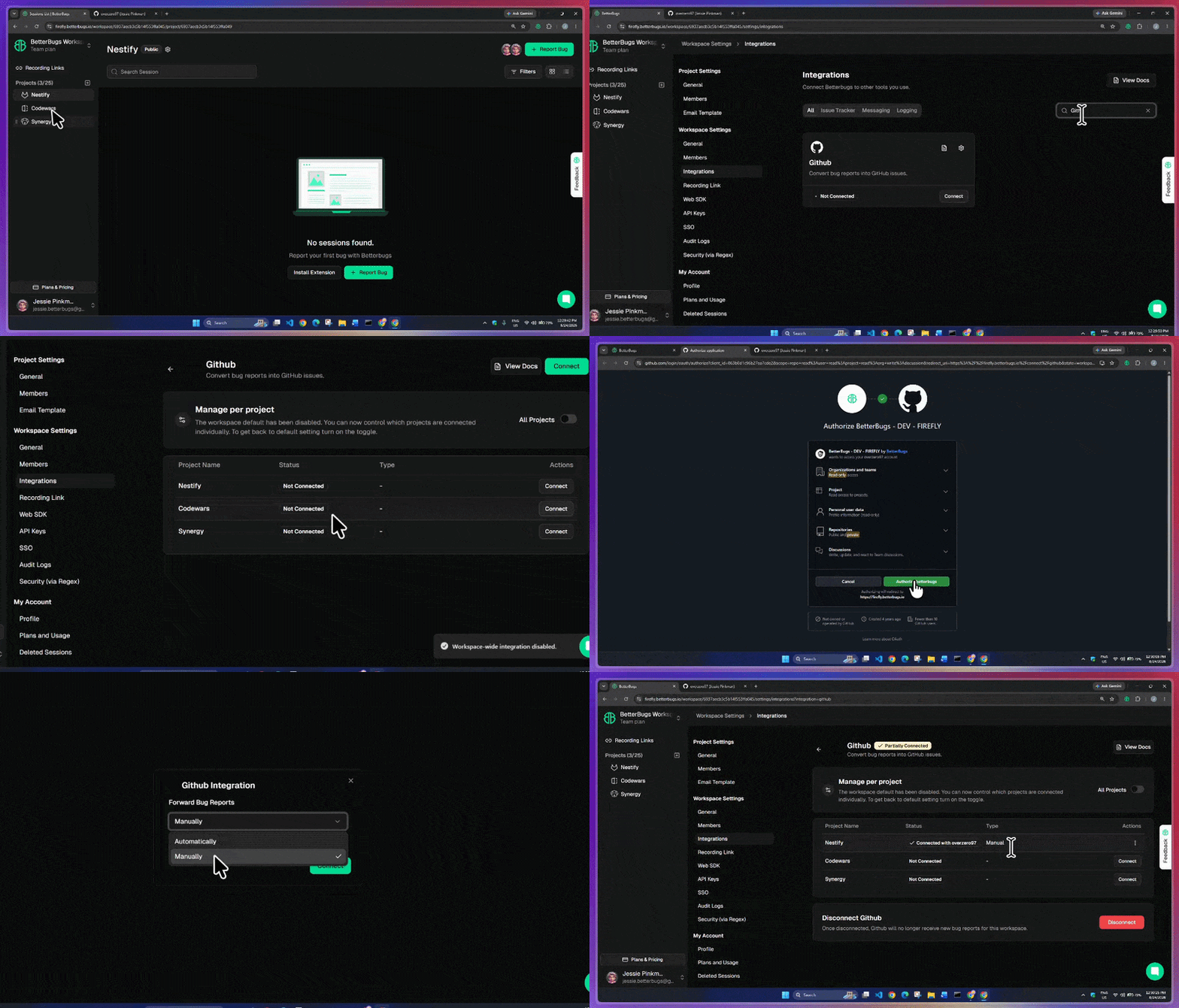
BetterBugs and GitHub Integration
Okay! You’re all set with the integration.
Capture Bug, Add Details using AI, and Share to GitHub Repo as a New Issue — Right from Your Browser
A new tab opens and your bug report instantly adds as a GitHub issue to the selected GitHub Repo. You have all the bug details, including the summary and steps to reproduce, visual proof, and other details (Reported by, Source URL, Issue details, Console, Logs, and device info).
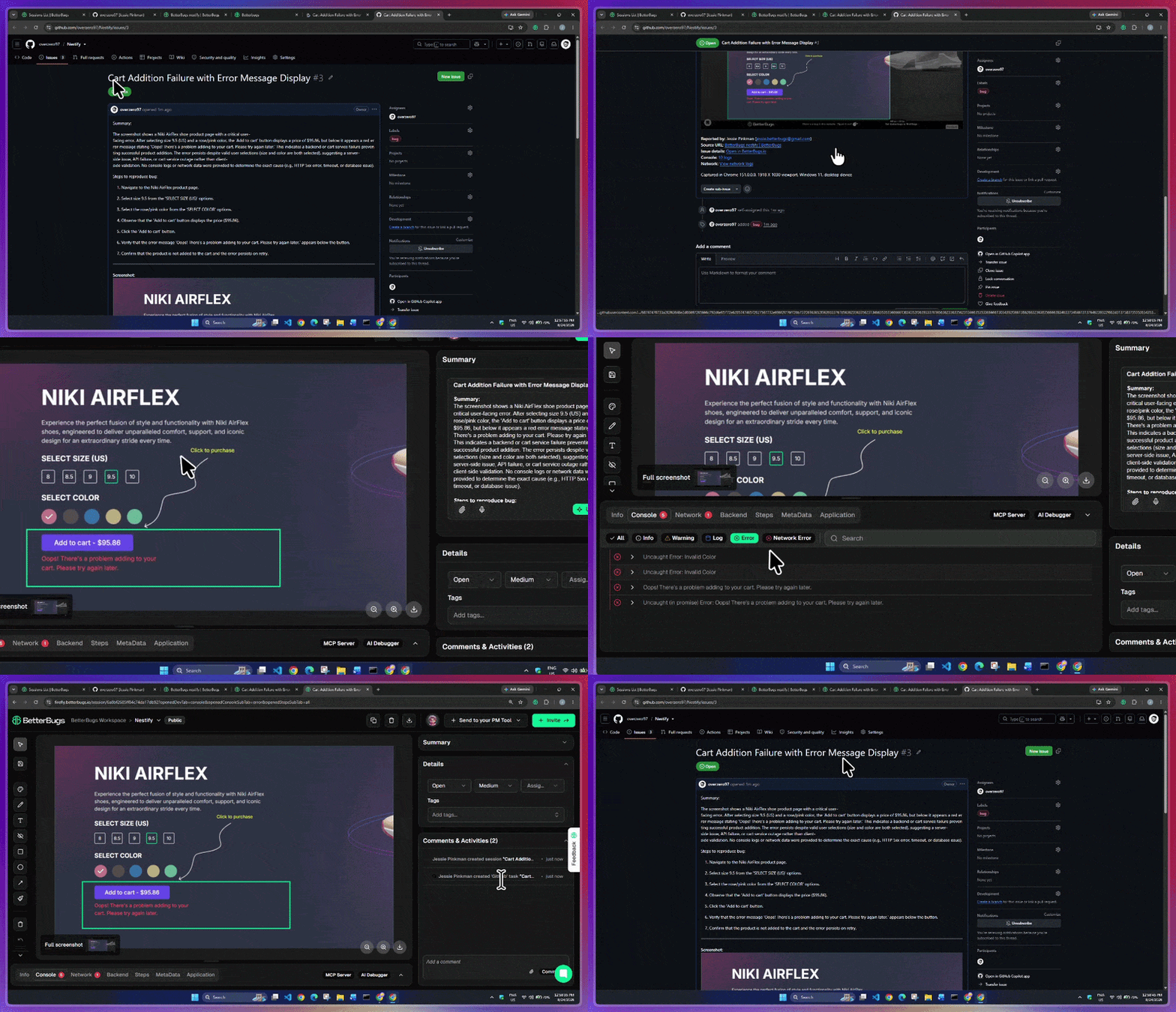
Open BetterBugs Full Report from GitHub Issue and vice versa.
Nishil is a successful serial entrepreneur. He has more than a decade of experience in the software industry. He advocates for a culture of excellence in every software product.
Meet the Author: Nishil Patel, CEO, and Co-founder of BetterBugs. With a passion for innovation and a mission to improve software quality.
We never spam.