Loading...
Loading...
Loading...
Loading...
Loading...
Loading...

About

  • BetterBugs
  • Our Story
  • Blog
  • Glossary
  • Docs
  • Code of Conduct

Legal

  • Terms & Conditions
  • Privacy Policy
  • Cancellations & Refunds

Features

  • Record Screens
  • Create Markups
  • Developer Logs
  • Rewind
  • Collaborate with Team
  • Integrate with Project Tools
  • AI Assistant

Integrations

  • Slack
  • Jira
  • Linear
  • ClickUp
  • Asana
  • GitHub
  • MS Teams
  • Trello
  • Sentry
  • Azure Boards

Use Cases

  • QA Engineers
  • Developers
  • Managers
  • Support Teams
  • Founders
Logo

© 2026, All Rights Reserved

Nothing here!
Show us some love 💖. Try BetterBugs today if you haven’t already. A quick feedback and a rating on our Chrome web store page would be awesome!

Share your experience with the founderhere!

Don’t wait! Start reporting now.

Logo
  • Products

  • Solutions

  • Integrations

  • Resources

  • Pricing

  • BB for Support

  • MCPNew

Login
Logo

Asana Bug Reporting | How to Create Bug Reports in Asana [2027]

Nishil Patel

Nishil Patel

Oct 22, 2026

5 min read

Last Updated Oct 22, 2026

Last Updated Oct 22, 2026

Share

Asana Bug Reporting | How to Create Bug Reports in Asana [2027]

Check out the steps for automatic bug reporting in Asana using BetterBugs.io. We’ve also included the steps for Asana bug reporting with the default manual steps that you can use from within Asana in 2027.

Table of Contents

1.

What is Asana?

2.

Easiest Way to Create Bug Reports in Asana in 2027 — Using BetterBugs.io Free Chrome Extension

3.

Asana Bug Reporting | Automatic Method in 2027 | Using BetterBugs.io

4.

Asana Bug Reporting | Manual Method in 2027 | Step-by-Step

5.

FAQs

What is Asana?

Asana is a popular project management tool that helps you organize, track, and manage work. It provides a collaborative workspace where you can break down large projects into smaller, more manageable chunks. 

Product teams use Asana to assign tasks, set deadlines, share files, and communicate about project progress. It packs in various features and views, such as boards, lists, and calendars, to help visualize and manage software development workflows.

Also Read: What are issue types in Jira?

Easiest Way to Create Bug Reports in Asana in 2027 — Using BetterBugs.io Free Chrome Extension

What is BetterBugs.io?

BetterBugs.io is a free Chrome extension, perfect for bug reporting, bug tracking, and debugging workflows. It has no-code setup and zero-learning curve. Both technical and non-tech users can get started with it in minutes. It also comes with extensive issue management features.

Why teams prefer BetterBugs.io for Asana bug reporting?

BetterBugs.io enables you to create a perfect bug report in one-click. You can instantly send the bug report to your Asana project as a task, right from your browser without juggling tools or manual efforts. 

This allows you to report bugs on Asana — with visual proof, complete context, and auto-attached technical details — significantly faster and without to-and-fro.

Every bug report on packs in:
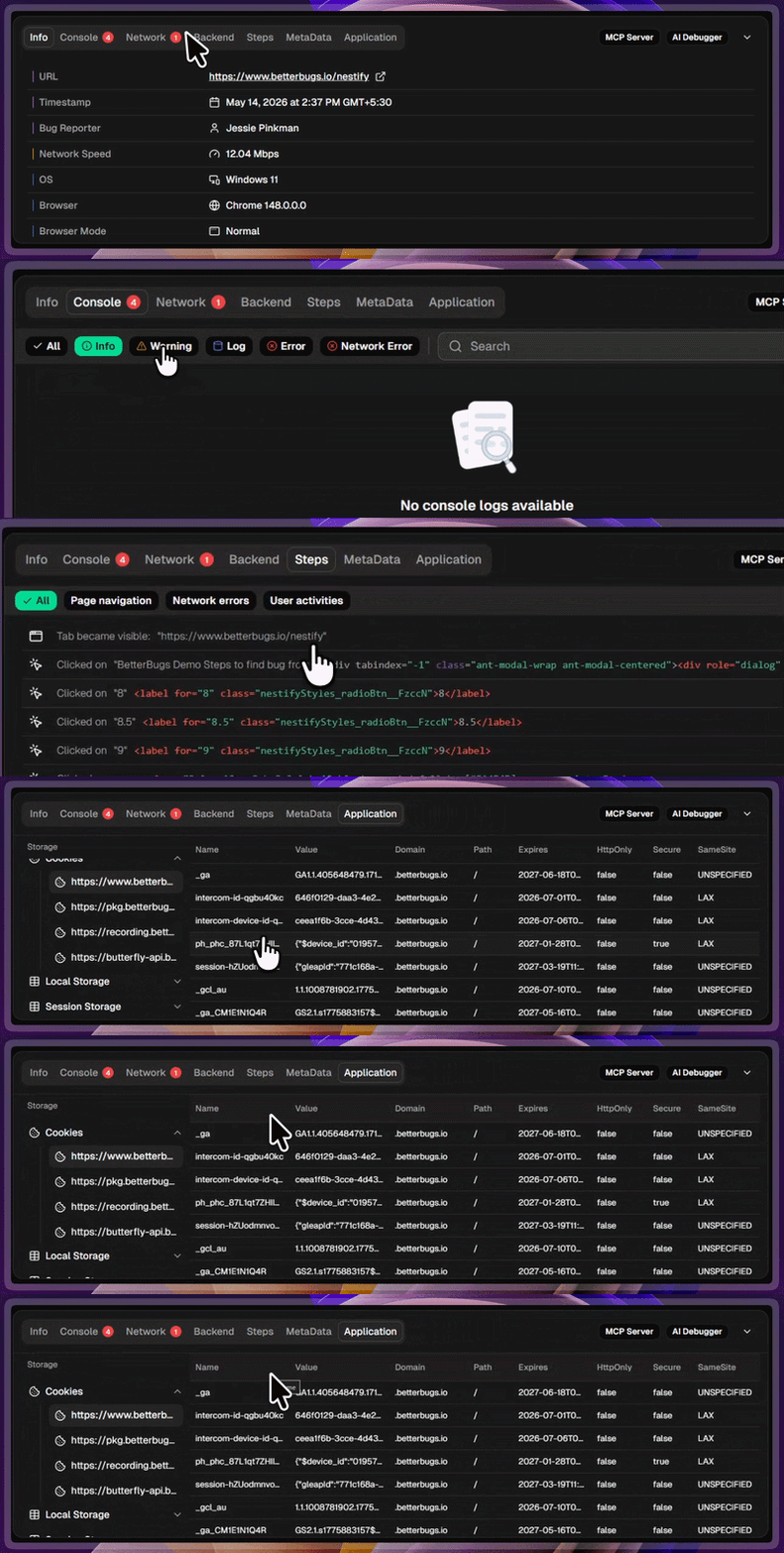
Debugging Details Captured with Every Bug Report | Info, Console, Network, and others

Devtools details that comes auto-attached with every bug report

  • Screenshot or screen recording of the issue
  • Console logs
  • Network 
  • Backend event logs (using Sentry Integration)
  • Custom metadata [added by the reporter]
  • Application state info

You can access the complete report with the report link right from your Asana task.

Integrates with other PM Tools: Jira, Linear, GitHub, and many others

You can also integrate BetterBugs.io with 15+ PM tools and issue trackers, such as Jira, GitHub, Linear, and many others.

BetterBugs.io Reports for Debugging: Manual + Built-in AI Debugger + MCP

Using BetterBugs bug reports, you can run:

  • Manual Debugging Sessions: Use the visual cues and auto-attached telemetry (devtool logs, system info, Sentry event logs, and others) with every bug report to debug issues with all the details and context you need.
  • AI Debugging: Use the built-in AI Debugger tab (in a chat-style format) with every bug report to get instant RCA, possible solutions, test cases, and conclusion in seconds. 
  • MCP Server for Debugging: Use the BetterBugs MCP Server to get accurate code fixes. Once you install the BetterBugs MCP server in your  preferred AI tool (VS Code, Claude Code, Windsurf, and many others), all you need is the BetterBugs bug report link + quick prompts to get accurate fixes on the first try! The AI agents can fetch all the technical details and context of the issue using the report link. It’s perfect for debugging the issue with AI assistance cutting your issue resolution time by half or even one-fourth.

Asana Bug Reporting | Automatic Method in 2027 | Using BetterBugs.io

1 - Download BetterBugs.io from Chrome Web Store

Kick things off by installing BetterBugs Chrome Extension. Then, signup using your email, Google account or GitHub. Pin the extension to your browser for quick access.
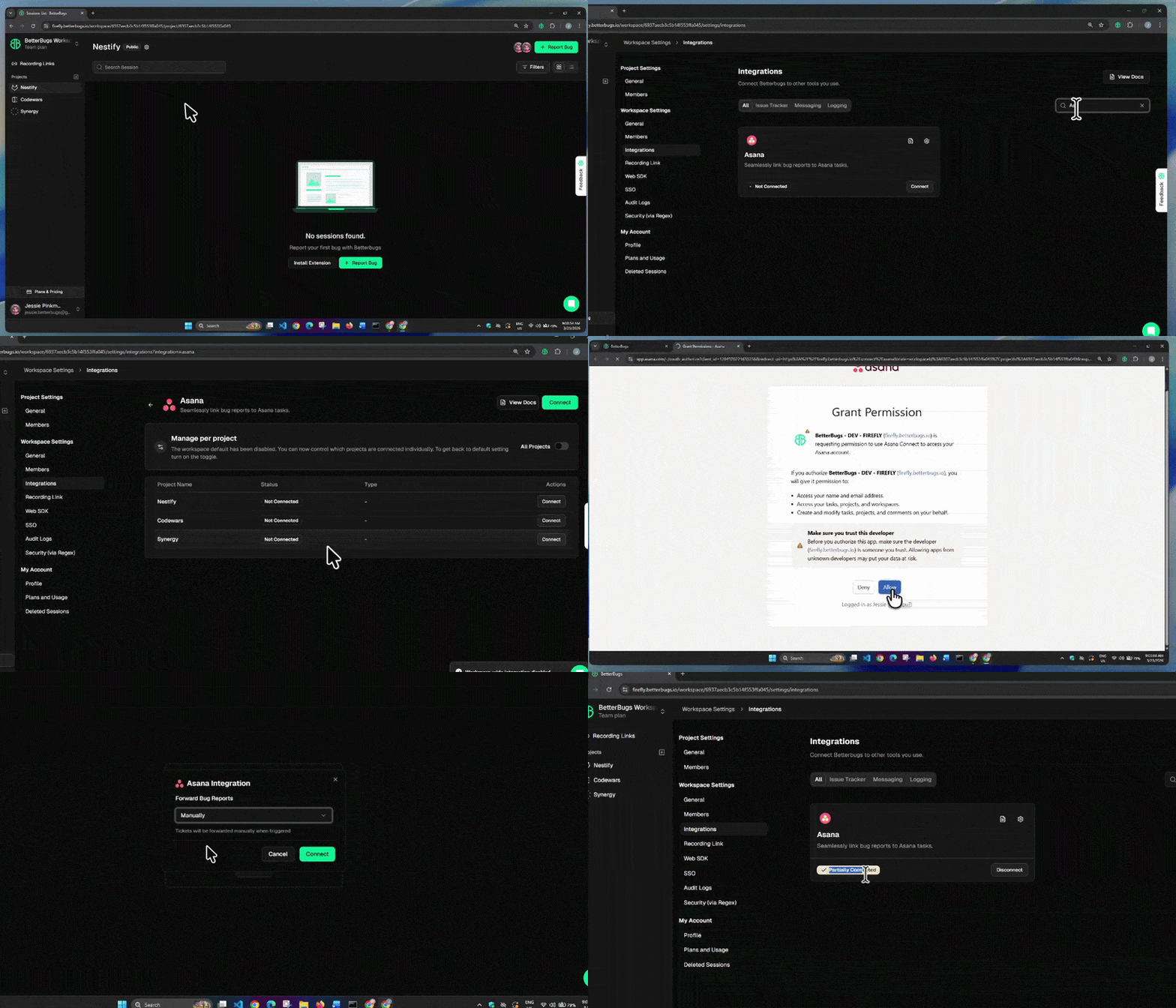
2 - BetterBugs.io Integration with Asana (Takes less than 60 Seconds)

BetterBugs and Asana Integration Steps 2027

BetterBugs and Asana Integration

  1. Open BetterBugs Workspace Settings: Click your BetterBugs Workspace name (top-left) > Gear icon > Integrations.
  2. Select Asana: Search for Asana and click the Asana card.
  3. Switch to Project-Level Integration: Toggle off "All Projects", click Continue, and select "Manage per project".
  4. Connect Project: Find your project from the list and click Connect in the Actions column.
  5. Authorize Access: Click Allow to grant BetterBugs access to Asana [Free Plan Users: You're all set! Skip to the How to Create Bug Reports section.]
  6. Choose Forwarding Method (Paid Plans Only): From the Forward Bug Reports dropdown, choose:
    • Manually (Free): You'd have to fill in task fields for Asana manually for each report.
    • Automatically (Paid): You can configure this to share reports with auto-populated Asana fields.
  7. Connect: Select your preferred report forwarding method and click Connect.

Okay! You’re good to go with the integration.
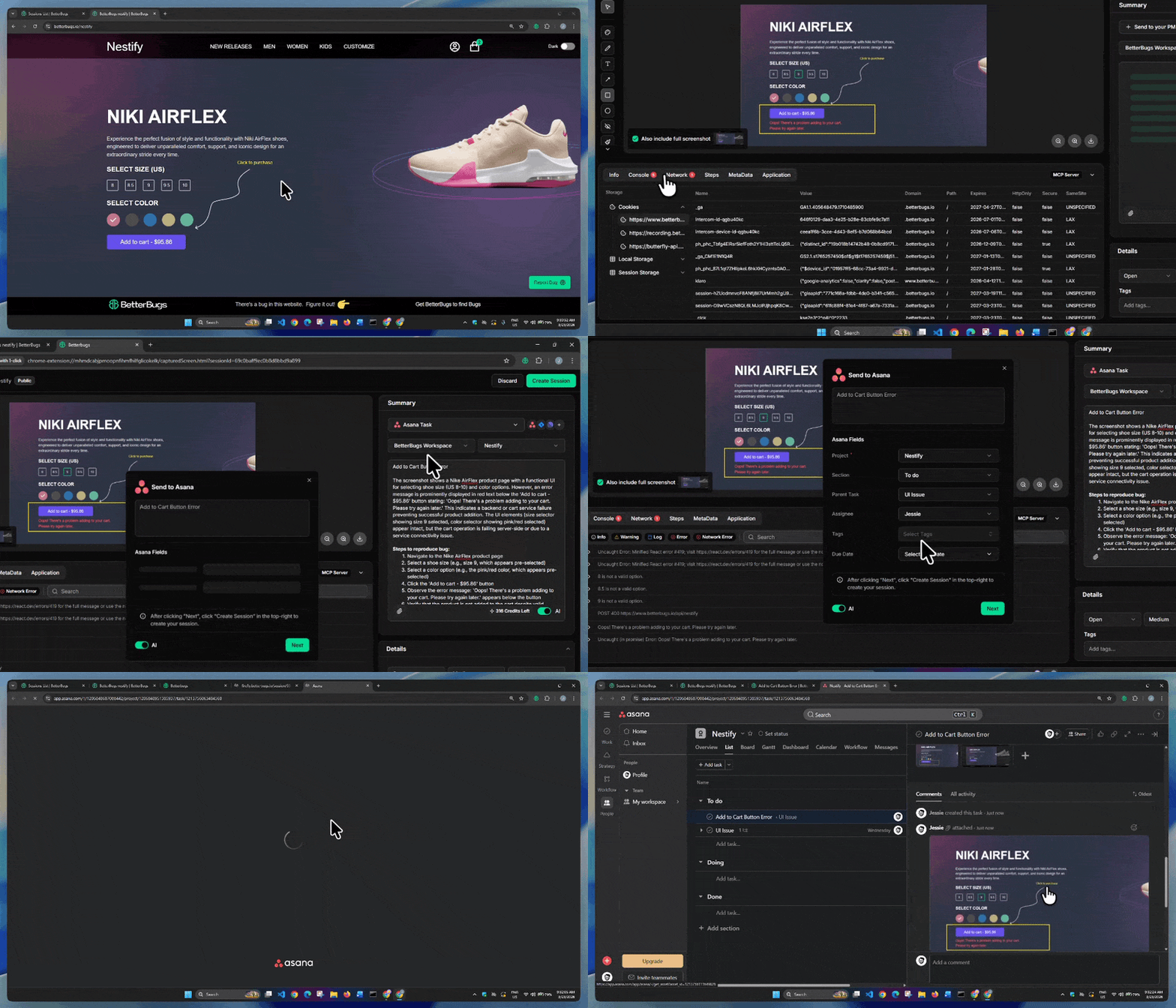
3 - Creating Bug Report Using BetterBugs.io and Sharing Instantly to Asana (Takes less than 2 minutes)

Asana Bug Reporting: How to Create Bug Reports on Asana using BetterBugs.io

Asana Bug Reporting: How to Create Bug Reports on Asana using BetterBugs.io

  1. Capture the Bug & Add Details: Use the BetterBugs extension to capture the bug. Enter details (Title, Summary, Steps to Reproduce) manually, or use "AI" toggle to generate them automatically.
  2. Select Workspace & Project: Use the top dropdowns to select your BetterBugs Workspace and the Project connected to Asana.
  3. Select Asana Task: Click the "+ Send to your PM Tool" dropdown and select Asana Task.
  4. Fill Asana Details: Populate the task fields (Project, Section, Parent Task, Assignee, etc.) and click Next.
  5. Create Session: Click Create Session in the top-right corner to finish.

A new tab opens with the complete bug report available on your Asana project as a task. You can access the complete report on BetterBugs from your Asana task. Plus, you can access the Asana task right from the BetterBugs bug report using the “Comments/Activities” tab.

Also Read: Jira Bug Reporting: How to Easily Create Jira Tickets in Minutes [2027]

Create One Click Bug Reports that Devs Love and Instantly Share to Asana

Asana Bug Reporting | Manual Method in 2027 | Step-by-Step

1 - Log in to Asana and open Project

Open a project in Asana to create a new bug report.

2 - Select task view and create task

Select task view for your project (List or Board). For instance, let’s select the “Board” view. Hit “+ Add task” in the “To do” column. This opens a small task pane to create a bug report (or any other task you’d want to add). 

Now, click again on the small task pane. This opens a new bigger task pane on the right side to add details for the bug.

3 - Add details for the bug

Add details for the bug:

  • Give your task a title; such as “Add to cart issue in the single product page”
  • Assignee
  • Due date
  • Project(s) and column section (To do, Doing, Done)
  • Dependencies (Any other tasks or project “Blocked by” or “Blocking” the task)
  • Fields: Add Priority and Status (You can also edit/add the fields with the “Edit options” 
  • Description: Add details for the bug including concise summary, steps to reproduce the bug (numbered), actual outcome vs expected result, any error or exception messages, additional context, environment details (OS, system, device, browser, etc.) and technical details (logs, warnings, network requests, and others) 

You can also include subtask(s) for the bug using “+ Add subtask”.

4 - Attach visual proof of the bug and other files

Click the paperclip icon located at the top to add attachments, such as:

  • Annotated screenshots or screen recordings of the bug
  • Any other docs, PDFs, project specs docs, and log files. 

Also Read: What are annotations? Explained with examples

5 - Finalize the task

Double check for mistakes, missing info, and typo. Now, click anywhere outside the task pane. This creates a new bug report and the task adds to your board.

Report and Resolve Bugs 10X Faster

FAQs

Can I automate bug reporting in Asana?
What is the benefit of using BetterBugs.io for Asana bug reporting?
How is a bug report created using the BetterBugs.io extension different from a manual bug report?

BetterBugs.io bug reports are context-rich and technically sound. The best part is that you require zero-effort to create reports with it. While a manual report requires you to manually gather and input all the details, the BetterBugs auto-captures and attaches technical logs, device information, and page navigation steps. This provides developers with a complete and context-rich report, saving time and auto-handling the gruntwork.

Written by
Nishil Patel

Nishil Patel | CEO & Founder

Follow

Nishil is a successful serial entrepreneur. He has more than a decade of experience in the software industry. He advocates for a culture of excellence in every software product.

Subscribe to our updates

Meet the Author: Nishil Patel, CEO, and Co-founder of BetterBugs. With a passion for innovation and a mission to improve software quality.

We never spam.