
Share your experience with the founderhere!

Nishil Patel
Sep 18, 2025
5 min read
Last Updated Sep 18, 2025

Check out the steps to create bug reports on ClickUp. This article walks you through the manual steps to create a ClickUp task. Plus, it covers a stepwise guide to create and share dev-friendly bug reports to your ClickUp project instantly using BetterBugs.io.
1.
Introduction
2.
What is ClickUp?
3.
How to create bug reports in ClickUp: Step-by-Step
4.
Automate ClickUp bug reporting with BetterBugs.io — Free Bug Reporting Chrome Extension
5.
How to report bugs on ClickUp using BetterBugs.io: Easiest Way
6.
FAQs
In this article, we’ve covered the practical steps to create a bug report in ClickUp. It also covers a stepwise guide to add bug reports to ClickUp using BetterBugs.io. Using it, you can share bit-perfect bug reports to your ClickUp project in just a few clicks, saving you massive time and manual effort.
ClickUp is a versatile project management tool that helps organize, plan, and execute tasks for product teams. It's a well-rounded platform for managing projects, documents, and communication. It is suitable for a wide range of teams, from software development to marketing. It’s highly customizable. You can create custom fields and views, such as a Kanban board, a list, or a calendar, to track work in a way that works best for your team.
For software development, ClickUp is particularly useful for tracking bugs, managing product backlogs, and planning sprints. It provides a structured environment for reporting issues, assigning them to devs, and monitoring their progress.
Also Read: Jira Bug Reporting Guide: Easy ways to report a bug in Jira
Steps to create a bug report on ClickUp:
Log into your ClickUp workspace and select a project to create a report.
Click on the blue “Add Task” button on the top right.
Open the “Task” dropdown” and select the task type as “Bug”.
If the “Bug” task type isn’t available, click “+ Create Task Type”. Scroll down the window, locate the banner item for “Bug”, and hit “Add”.
Add a name for the bug and add key details, such as:
Add info for:
You can also create custom fields using the “+ Create new field” button
Also Read: What are Issue Types in Jira?
Click the paperclip icon at the bottom to include attachments, such as annotated screenshots, screen recordings of the issue, log files, HAR files, RTMs, and other docs.
Also Read: What is a Requirement Traceability Matrix (RTM)?
Lastly, check for any missing info or fields and hit “Create Task” and voila!
A small pop-up card appears at the bottom that confirms the task creation.
Also Read: How to create bug reports in Linear tool: Step-by-Step Guide
BetterBugs.io enables you to share technically sound and context-rich bug reports to your ClickUp project right from your browser. You do not have to manually add bug details to your ClickUp project.

BetterBugs Bug Report Example
Just take a screenshot or record your screen of the bug and BetterBugs.io automatically attaches:
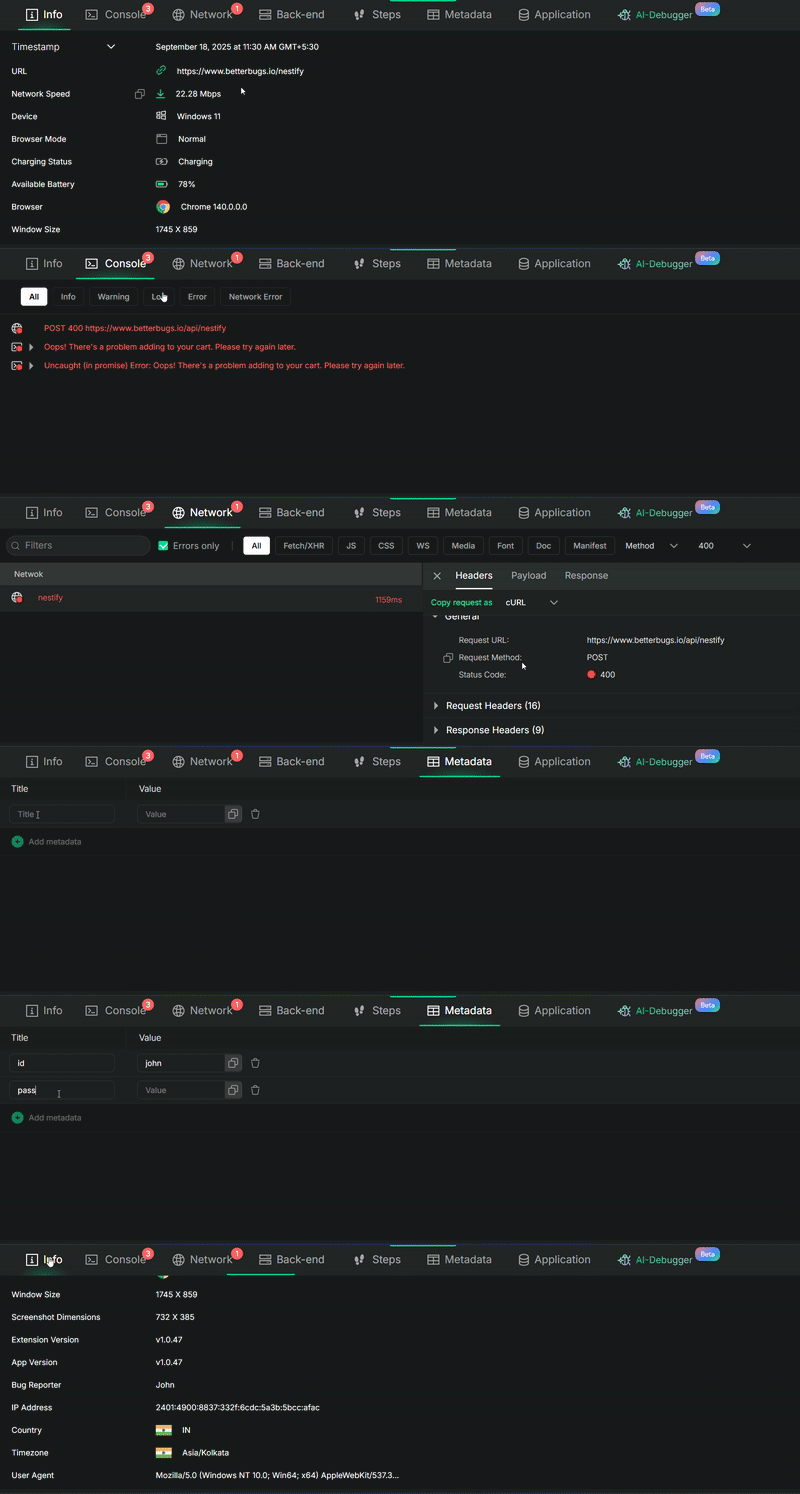
Technical and Meta details auto-attached to every bug report
You do not need to gather evidence for the bug and add manually. BetterBugs does this for you in seconds.
This allows you to get all the context and technical details for engineers to start debugging. Plus, while creating your bug report, you can add summary and steps to reproduce the bug using the “Write with AI assistant” option.
The complete bug report (that packs in the visual proof and underlying details) can be shared instantly to others (with a unique report link) or to your ClickUp workspace in a few clicks. Plus, you can integrate BetterBugs with many other project tools, such as Jira, Asana, GitHub, Trello, Notion, GitLab, and others.
BetterBugs also comes with an integrated AI Debugger (for uploaded reports) that gives you an instant root cause analysis and possible ways to fix the bug. This helps developers debug much faster.

BetterBugs AI Debugger
Download BetterBugs from Chrome web store. Signup using an email. You can also use your Google or GitHub account for it.
This enables you to save all your bug reports nicely into your BetterBugs project accessible from anywhere. Pin the extension on your browser for quick access.
Here’s how to integrate BetterBugs.io with your ClickUp Workspace within seconds:
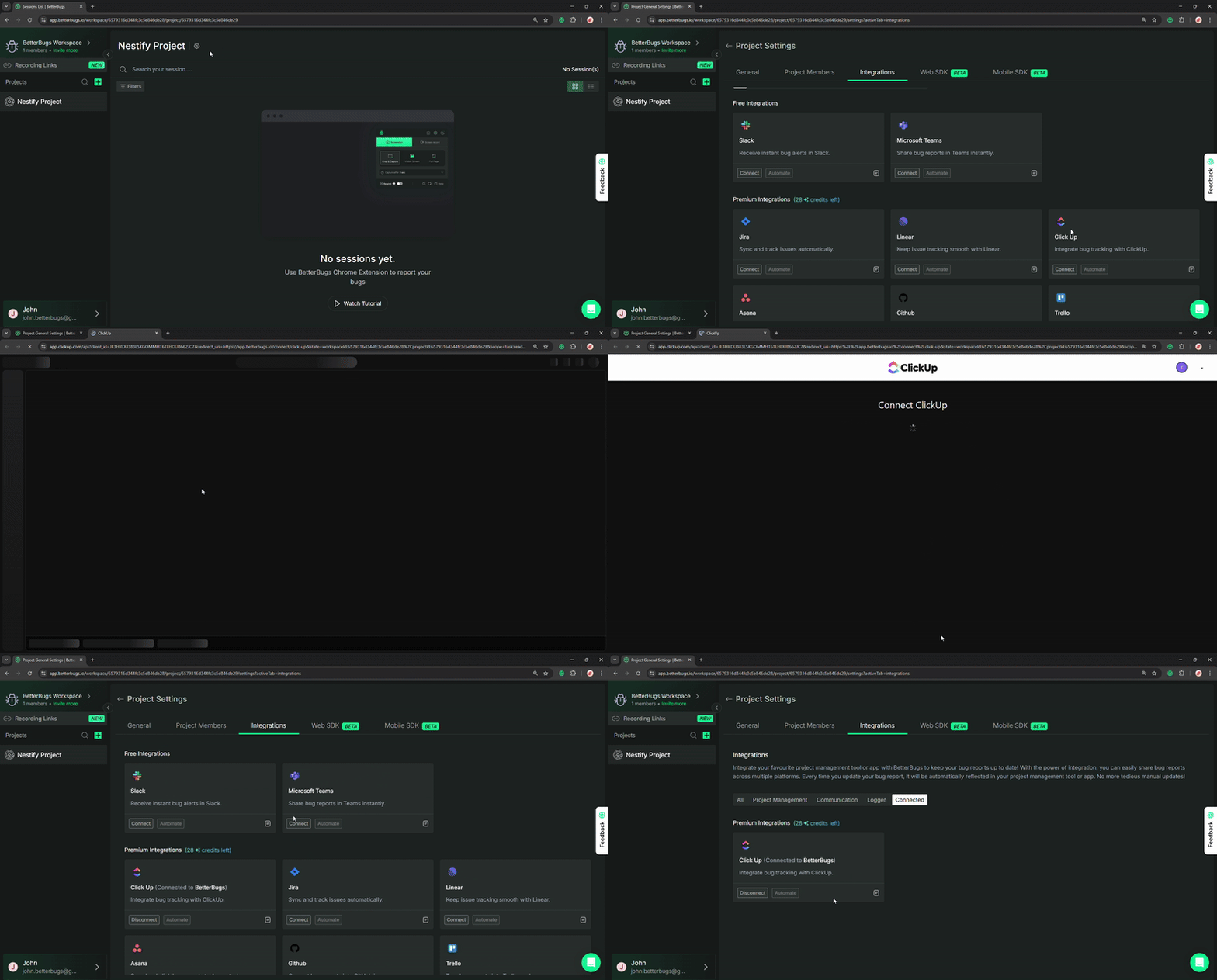
BetterBugs Integration with ClickUp
Cool! You’re all set with the integration.
Steps to create and a bug report on ClickUp using BetterBugs.io:

Capture bug and add details
Open the extension and capture the bug using the “Screenshot” or “Screen Record” option > Annotate > Select BetterBugs Workspace and Project (connected with ClickUp) > Add a title* > Add summary and steps to reproduce (manually or using “Write with AI Assistant”) > Add attachments using “Upload files” option

Add details for ClickUp
Hit “+ Connect to your tools” and select “ClickUp task”. This fetches your Clickup template. Populate the details and hit “Upload Bug Details”.
Done! This opens a new tab with your ClickUp task instantly available to work upon.
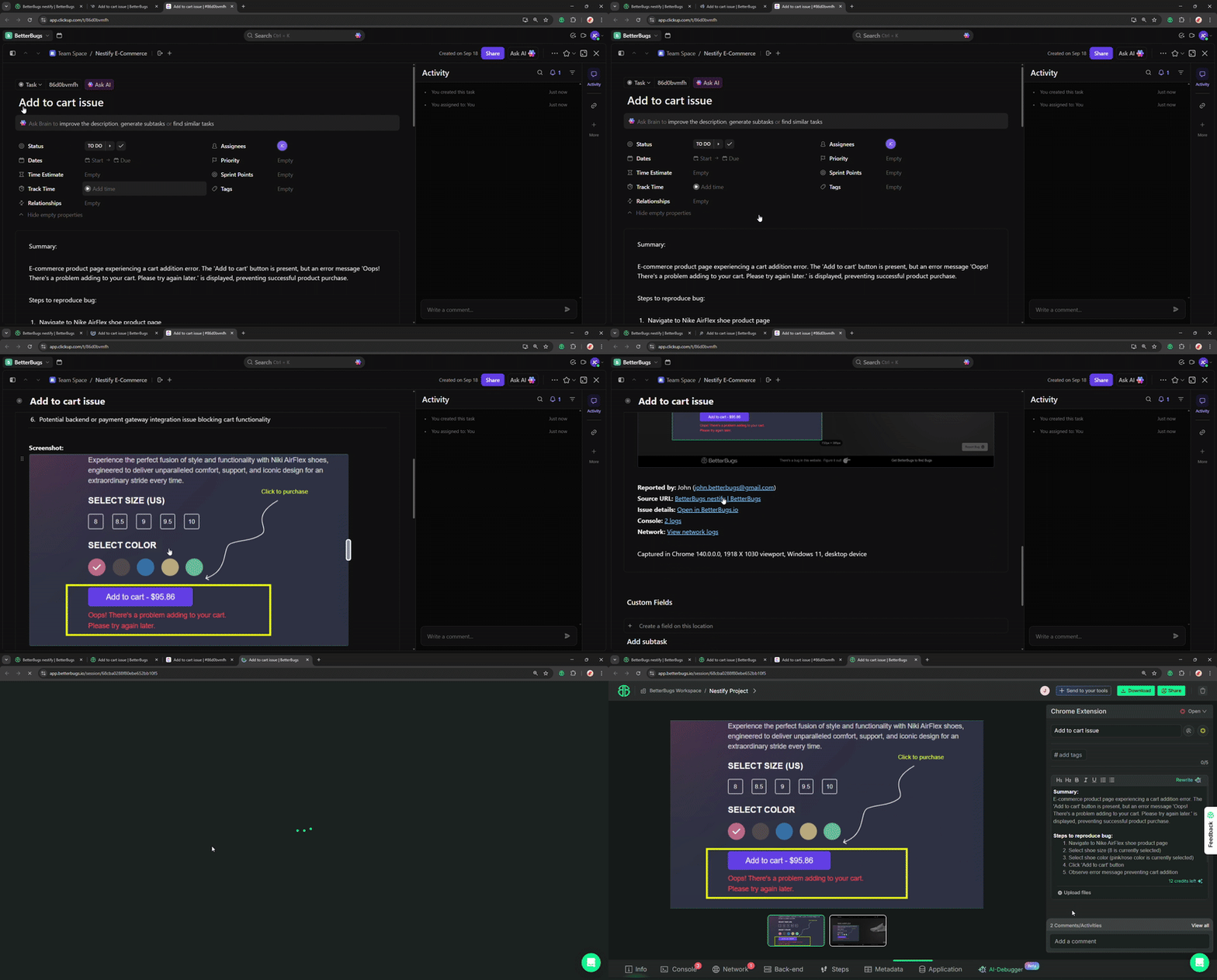
ClickUp Task created using BetterBugs
A ClickUp task with all the bug details (title, steps to reproduce, visual proof, technical and env details) gets added in your ClickUp project. It also includes a link to the complete bug report on BetterBugs.io
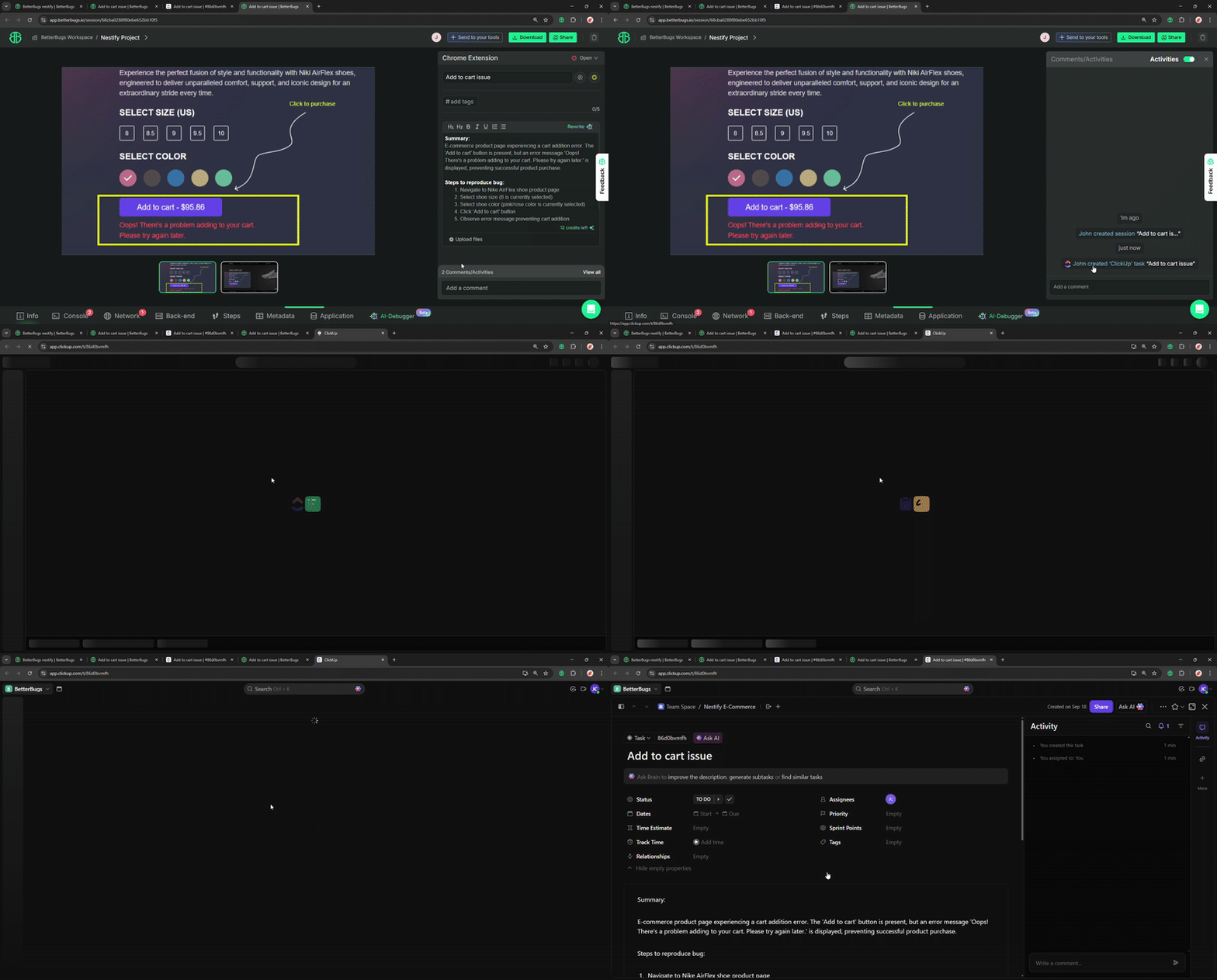
Accessing ClickUp Task from BetterBugs report
Hit the “Comment/Activities” option and click the “ClickUp task” that you just created to access the ticket in your ClickUp project. You can also add comments in the Activities tab for quick follow-ups and collaboration for the report.
Nishil is a successful serial entrepreneur. He has more than a decade of experience in the software industry. He advocates for a culture of excellence in every software product.
Meet the Author: Nishil Patel, CEO, and Co-founder of BetterBugs. With a passion for innovation and a mission to improve software quality.
We never spam.