Loading...
Loading...
Loading...
Loading...
Loading...
Loading...

About

  • BetterBugs
  • Our Story
  • Blog
  • Glossary
  • Docs
  • Code of Conduct

Legal

  • Terms & Conditions
  • Privacy Policy
  • Cancellations & Refunds

Features

  • Record Screens
  • Create Markups
  • Developer Logs
  • Rewind
  • Collaborate with Team
  • Integrate with Project Tools
  • AI Assistant

Integrations

  • Slack
  • Jira
  • Linear
  • ClickUp
  • Asana
  • GitHub
  • MS Teams
  • Trello
  • Sentry
  • Azure Boards

Use Cases

  • QA Engineers
  • Developers
  • Managers
  • Support Teams
  • Founders
Logo

© 2026, All Rights Reserved

Nothing here!
Show us some love 💖. Try BetterBugs today if you haven’t already. A quick feedback and a rating on our Chrome web store page would be awesome!

Share your experience with the founderhere!

Don’t wait! Start reporting now.

Logo
  • Products

  • Solutions

  • Integrations

  • Resources

  • Pricing

  • BB for Support

  • MCPNew

Login
Logo

How to Create Bug Reports in Linear for Issue Tracking [2026]

Nishil Patel

Nishil Patel

Jul 31, 2026

5 min read

Last Updated Jul 31, 2026

Last Updated Jul 31, 2026

Share

How to Create Bug Reports in Linear for Issue Tracking [2026]

In this article, check out the steps for Linear bug reporting and issue tracking using the manual method. We’ve also included the steps to automate the bug reporting process in Linear using BetterBugs.io as a bug reporting tool.

Table of Contents

1.

Introduction

2.

What is Linear?

3.

Easiest Way for Linear Bug Reporting in 2026 — Using BetterBugs.io Free Chrome Extension

4.

How to Create a Bug Report in Linear: Default Method

5.

FAQs

Introduction

In this article, we’ve covered the manual steps to report bugs and issues in Linear. We’ve also included steps for using BetterBugs.io as a Linear bug reporting tool. BetterBugs.io helps automate the gruntwork and tedious parts of bug reporting (such as technical evidence gathering, adding env info, and others) and issue tracking workflows. So, you can spend less time documenting and explaining bugs and more time fixing them in 2026. Here you go!

Also Read: Jira Bug Reporting in 2026: Easy Steps to Create Tickets in Jira

What is Linear?

Linear is a popular issue tracker and PM tool, preferred by software teams for its minimalist interface and tight integrations with other tools and trackers. 

Many prefer Linear for its "opinionated" design, which offers a pre-defined system for managing work (using cycles, projects, and teams) and built-in bug tracking features right out-of-the-box. This requires less initial setup than many other complex tools for teams to create, assign, and track issues with minimal friction.

Also Read: How to write effective bug reports: [Step-by-Step Guide]

Easiest Way for Linear Bug Reporting in 2026 — Using BetterBugs.io Free Chrome Extension

What is BetterBugs.io and How Does it Help?

BetterBugs.io enables you to create bit-perfect bug reports in one click and share them instantly to your Linear project. 

It's a free Chrome extension for creating context-rich, data-filled, and technically sound bug reports in seconds. 

BetterBugs.io Bug Report 

Whenever you capture a bug using BetterBugs (screenshot or screen recording or Rewind), it auto-attaches the following details to every bug report:
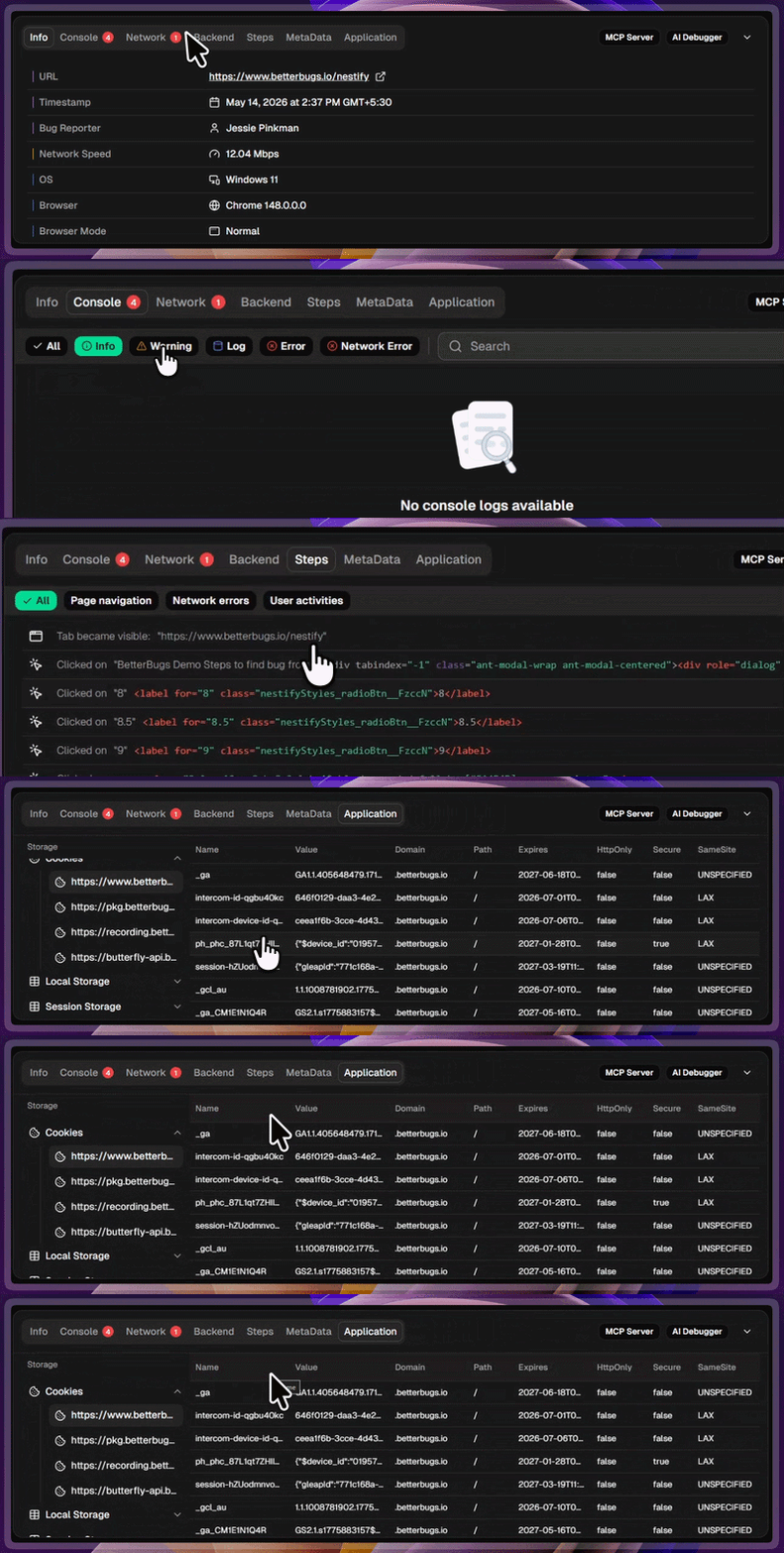
Debugging Details Captured with Every Bug Report | Info, Console, Network, and others

Technical and meta info auto-attached to every bug report

  • System info (OS, URL, timezone, device info, and others)
  • Devtools info (logs, errors, warnings, network requests, app state info)
  • Page navigation steps
  • Custom metadata
  • And many others.

You can send the complete bug report to your Linear workspace, right from your browser in a few clicks. 

Plus, you can seamlessly integrate 15+ project management tools and issue trackers (Jira, GitHub, Asana, GitLab, and many others).

You do not need to manually add issue details or copy-paste information to your Linear project. BetterBugs.io does this for you — in seconds! 

BetterBugs.io instantly creates a Linear ticket that packs in:

  • Visual proof of the issue (screenshot or screen recording)
  • Overview of the technical details (console logs, errors, network errors, device info)
  • Summary and steps to reproduce (You can add this manually or using the “Use AI” button after capturing the bug)
  • Any other Linear fields (Team, Project, Priority, Labels, and others)
  • Link to the complete report accessible on BetterBugs.io 

Simply put, BetterBugs.io can help automating your bug reporting and debugging processes. 

It also comes with an integrated AI Debugger for the uploaded reports that gives you an instant root cause analysis and possible solutions of the issue. This helps resolve issues way faster. 

Also, use the BetterBugs MCP Server that enables you for AI debugging sessions using the bug report link + a quick prompt. You can add BetterBugs MCP server to your preferred IDEs and AI text editors, such as VS Code, Claude, Google Antigravity, Cursor, and many others.

Step-by-Step Guide: Create a Bug Report in Linear for Issue Tracking (within minutes)

To start things off:

  1. Download the BetterBugs extension from Chrome web page
  2. Create a BetterBugs account (using email, Google, or GitHub). This allows you to manage all your reports from a central dashboard. 
  3. Pin the extension to your browser for quick access.

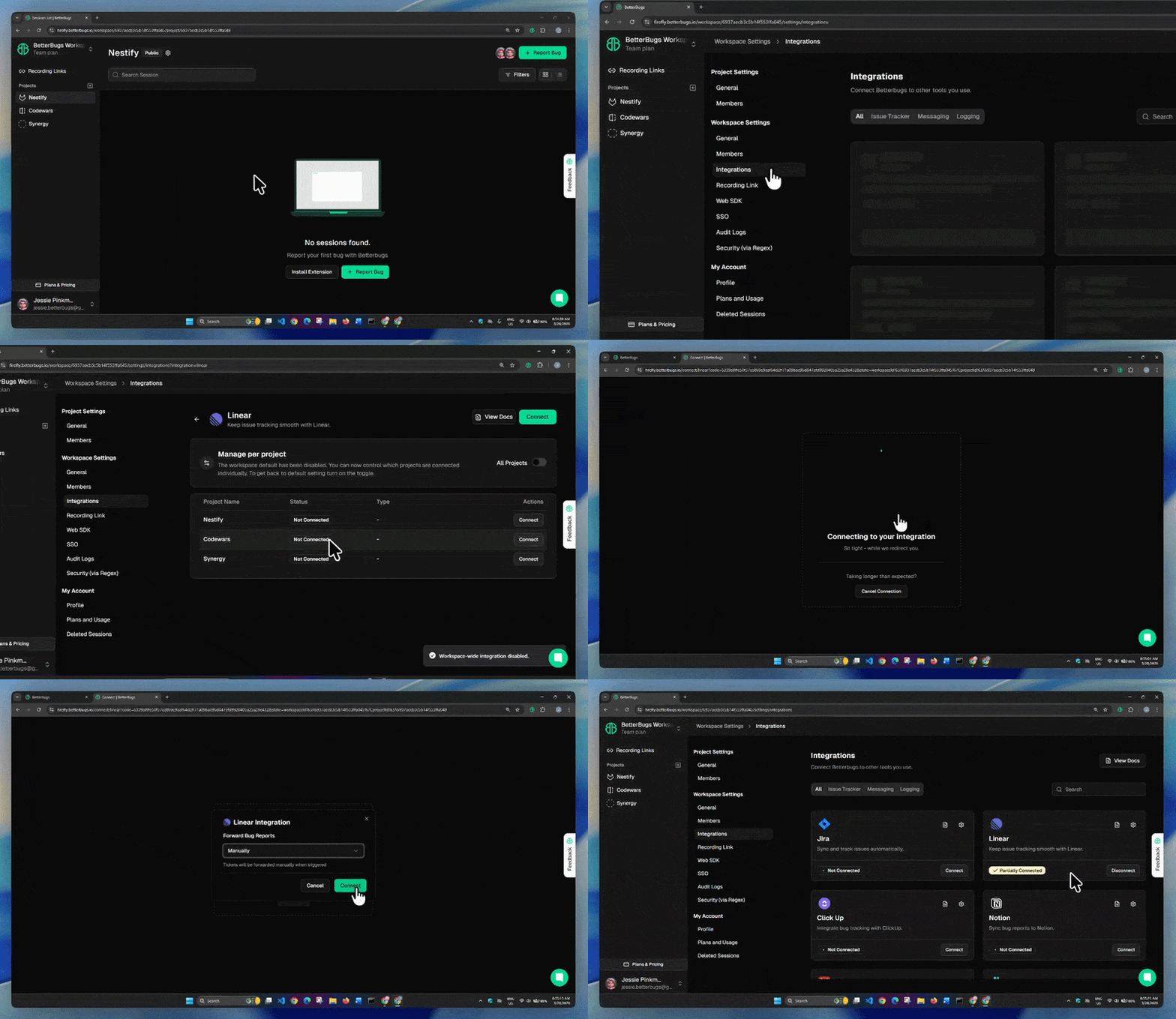
Step 1: Integrate BetterBugs.io with your Linear workspace (under 60 secs)

Integrate-BetterBugs-with-Linear

BetterBugs and Linear Integration Steps in under 60 seconds | Video Demo

  1. Open Workspace Settings: Click your Workspace name (at the top left) > Gear Icon > Integrations.
  2. Search Linear: In the Integrations tab, find and open the Linear card.
  3. Turn Off Workspace-Wide Integration: Toggle off "All Projects" and hit Continue to enable project-wise management.
  4. Select and Connect Project: Find your project in the list and click Connect under the Actions column.
  5. Authorize BetterBugs: Click Accept to authorize BetterBugs.io for your Linear app. (Free plans can skip remaining steps).
  6. Choose Ticket Method (Optional): From the "Forward Bug Reports" dropdown, select your preference:
    • Manually (Free): You manually populate Linear fields when sharing a bug.
    • Automatically (Paid): BetterBugs auto-populates Linear fields for you.
  7. Connect: Select "Manually" from the dropdown and hit “Connect”.

That’s it! You’re good to go with BetterBugs and Linear integration.
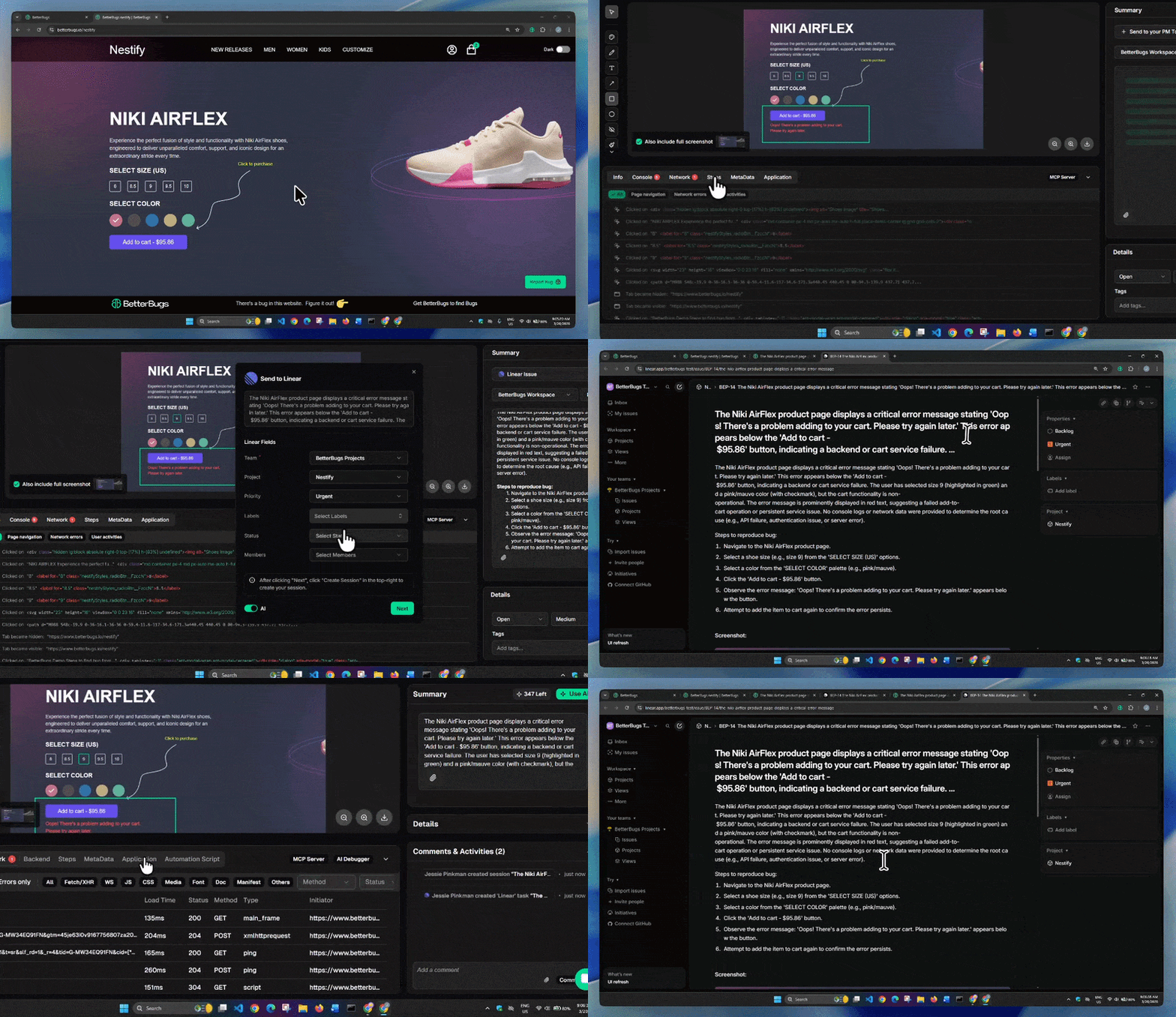
Step 2: How to Create a Linear Issue under 120 seconds: Using BetterBugs.io

Create-Bug-Report-on-Linear-using-BetterBugs

Steps to Create a Linear Bug Report Using BetterBugs | Video Demo

  1. Capture the Bug and Add Detail for it: Use the BetterBugs extension to capture the bug as a screenshot, screen recording, or a Rewind session video. Add the title, summary, and reproduction steps either manually or automatically using the "Use AI" button.
  2. Select Workspace and Project: Use the dropdowns above the description to select your BetterBugs Workspace and the specific Project integrated with Linear.
  3. Select Linear Issue: Click the "+ Send to your PM Tool" dropdown and select "Linear Issue".
  4. Populate Linear Fields: Fill in the required Linear details (Team, Project, Priority, Labels, and others) and click "Next".
  5. Create Session: Click "Create Session" in the top right.

A new tab opens with the Linear ticket. 

You can find the issue description, visual proof, logs, device information, and a link to the complete bug report (with auto-attached technical details). It packs in all the details and context that you need while debugging. Plus, you can access the Linear ticket from the “Comments & Activities” section at the bottom right of the bug report.

Create and Share Bug Reports on Linear like a Pro

How to Create a Bug Report in Linear: Default Method

Here are the steps to create a bug report in your Linear project:

1 - Open a project in Linear

Log into your Linear Workspace and select a Project to create a bug report.

2 - Hit “Create new issue” 

Click the blue colored “Create new issue” button. Or just press “C” from your keyboard as a shortcut.   

3 - Add description 

Then, add a quick summary and description for it, including:

  • Issue reproduction steps (numbered)
  • Expected vs Actual result
  • Technical details and environment info
  • Additional context and details wherever required.

4 - Include attachments

Next, click the paperclip icon from the bottom to add:

  • Visual proof of the issue (annotated screenshots or recordings).
  • Log files, PDFs, Requirement Traceability Matrix docs, or any other relevant files.

Also Read: What are annotations and how does it help?

5 - Select field values for the issue

Next, populate fields for:

  • Status
  • Priority 
  • Assignee
  • Project
  • Milestone
  • Labels
  • Other details (Set due date, Make recurring, Add link, Add sub-issue) 

Also Read: What are Issue types in Jira?

6 - Finalize the bug report

Double check for any missing info and hit “Create issue”.

You’re good to go. A toast notification appears at the bottom for successful action with the following details (example):

  • BDS-37 — Issue name
  • A link to open the issue.
  • Options to add other links, copy issue ID, and merge to Git branch.

Create Debugging Ready Bug Reports in One Click

FAQs

How does BetterBugs.io simplify bug reporting in Linear?
What technical details are automatically included in a BetterBugs.io bug report?
Can I integrate BetterBugs.io with other project management tools besides Linear?

Yes, BetterBugs.io offers seamless integration with more than 12 project management tools and issue trackers. In addition to Linear, you can connect it with popular platforms like Jira, Asana, and GitLab. You can centralize your bug reporting workflow across different tools.

Does BetterBugs.io help with the debugging process after a bug is reported?
How does BetterBugs.io get the information for the bug report?
Written by
Nishil Patel

Nishil Patel | CEO & Founder

Follow

Nishil is a successful serial entrepreneur. He has more than a decade of experience in the software industry. He advocates for a culture of excellence in every software product.

Subscribe to our updates

Meet the Author: Nishil Patel, CEO, and Co-founder of BetterBugs. With a passion for innovation and a mission to improve software quality.

We never spam.