
Share your experience with the founderhere!

Nishil Patel
Jan 29, 2026
7 min read
Last Updated Apr 7, 2026
Check out the steps to integrate BetterBugs MCP with Cursor in this article. We’ve also covered practical steps to use BetterBugs MCP on Cursor using BetterBugs report link which enables you to share complete context and technical details of the issue for AI Debugging sessions.
1.
Introduction
2.
What is BetterBugs MCP?
3.
How BetterBugs MCP can help in AI Debugging Sessions: With Example Use Cases
4.
How to Use BetterBugs MCP with Cursor? Step-by-Step
5.
FAQs
In this article, we’ve covered the practical steps to integrate BetterBugs MCP with Cursor. We’ve also included a step-by-step breakdown of how to use BetterBugs MCP + Cursor for AI debugging sessions saving you hours of manual debugging efforts or prompt engineering while you try to debug and fix code in your application.
BetterBugs MCP (Model Context Protocol) enables you to share BetterBugs bug reports into any AI-enabled development environment that supports MCP clients including tools like Cursor, VS Code, Claude Desktop, and Windsurf.
After setting up BetterBugs with your preferred MCP client (this article covers Cursor), debugging becomes simple: just drop the bug report link into your prompt along with the relevant context.
From there, the AI agent automatically pulls in the full report package (through tool calling from BetterBugs MCP), complete with screenshots, console logs, network activity, event traces, summaries, and step-by-step reproduction details.
The payoff is immediate: faster identification of root causes, suggested fixes, and structured debugging guidance. Simply put, it's AI debugging on steroids.
For you as a developer, this means sharing complete context and information through BetterBugs MCP to an AI agent for debugging combined with your own expertise to resolve issues more quickly and with greater accuracy.
Also Read: What is Bug Triage: Definitions, Importance, and Steps to Run
Traditional AI debugging can be pretty slow where you need to copy code snippets, screenshots, and logs from different places, pasting them into AI prompts. This means going through 10 or more rounds of questions as the AI asks for missing details. And this turns quick fixes into hours of wasted time.
BetterBugs MCP fixes this by providing the complete context (through full bug reports) straight to AI agents with one report link. The AI can ingest the accurate information (through BetterBugs MCP tool calling) of the issue and provides a possible root cause analysis (RCA), code fixes, tests, and next steps in minutes. And the debug rounds drop by 75-96%, accuracy improves, and sessions go from long to short.
Let’s look at some of the example use cases where BetterBugs MCP can help.
Also Read: Best Jira Integrations for Product Teams
Once you’re good with the setup, create a visual bug report using BetterBugs.io that packs in the visual proof, devtool logs, page navigation steps, and other info. After creating the report, you can put the report link directly to Cursor for AI debugging steps.
Here’s how to create a bug report using BetterBugs.io:
Okay! Your report session is ready with the complete context, auto-captured devtool logs, and other info.
NOTE: We’d paste the BetterBugs report link to Cursor with a quick prompt for AI Debugging.
To connect BetterBugs MCP with Cursor instantly, you can use the link: Add to Cursor
Here’s how to integrate BetterBugs MCP with Cursor:
1. Open Cursor and press CTRL/CMD + P
2. Search: >View: Open MCP Settings
3. In the “Tools and MCP” option from the left navigation panel and click “Add Custom MCP”
4. Paste the following code in the mcp.json file:
{
    "mcpServers": {
      "BetterBugs": {
        "url": "https://mcp.betterbugs.io/mcp"
      }
    }
}
5. Save the file and open the “Cursor Settings” tab.
6. From the “BetterBugs” option (should be available under “Installed MCP Servers”) , hit “Connect”.
7. In the Cursor dialog box, hit “Open”.
8. Finally, hit “Authorize” for successful authorization.
Okay! You’re all set with the MCP config on Cursor. It's as easy as that!
To confirm the BetterBugs MCP config for Cursor, in Cursor Settings > Tools & MCP > Installed MCP Servers, you should see BetterBugs successfully installed with 7 tools enabled. These tools include:
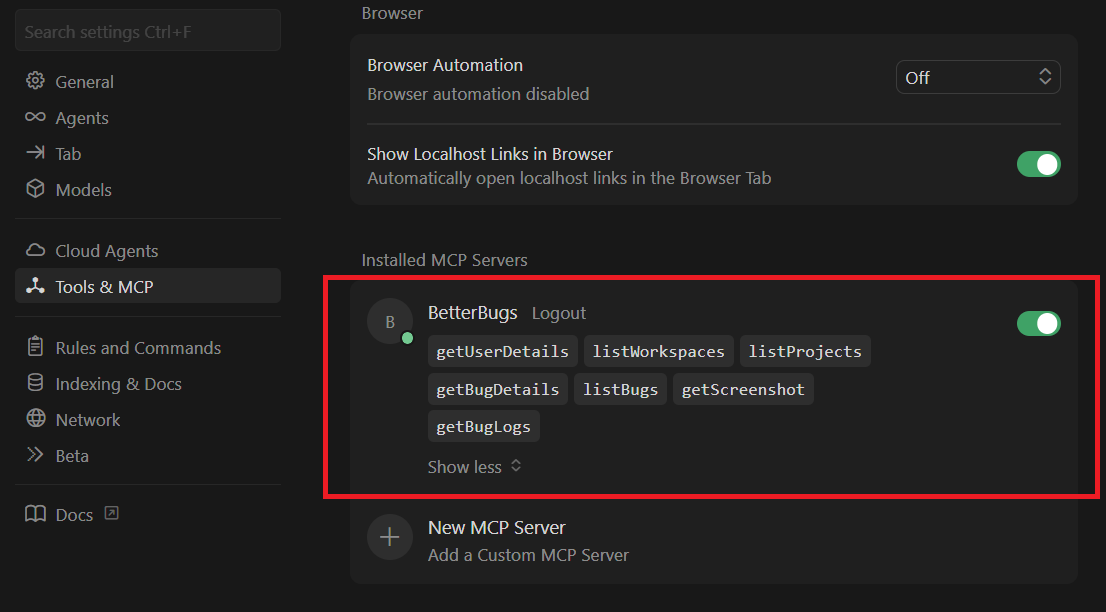
BetterBugs MCP Installed on Cursor
When you share the BetterBugs report link with Cursor, these details (as tools) would be exposed to Cursor through BetterBugs MCP. And this would enable Cursor to get the complete context and details to debug the issue.
Finally, here’s how to use BetterBugs report link through MCP for AI Debugging in Cursor:
PREREQUISITE: Make sure you have the BetterBugs report link handy.
1. Open your app folder in Cursor.
2. Open Agent Mode Chat interface from the top right.
3. Enter your prompt along with the BetterBugs report link and hit Return.
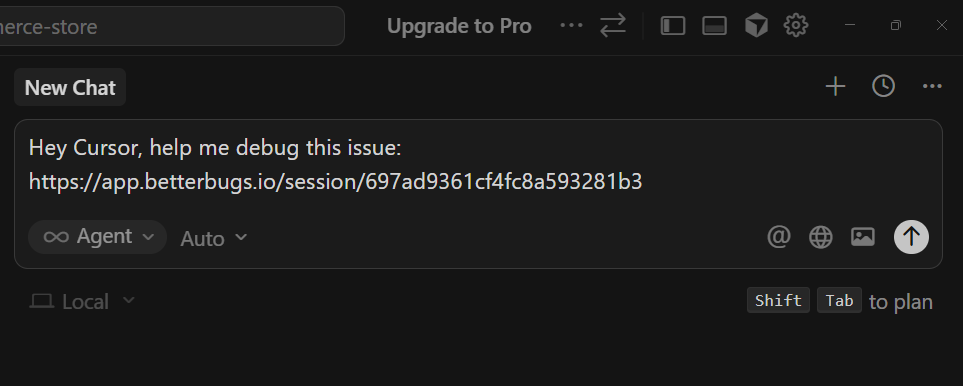
Prompt + BetterBugs Report Link
Here’s the prompt that you can use:
“Hey Cursor, help me debug this issue : https://app.betterbugs.io/session/697ad9361cf4fc8a593281b3”
Cursor will then prompt you to run BetterBugs MCP (for tool calling) for debugging. Select “Run Everything” from the dropdown and hit “Run” to continue.
(NOTE: You can also select the option for Cursor to ask every time it needs to run BetterBugs MCP tools OR create an Allowlist)
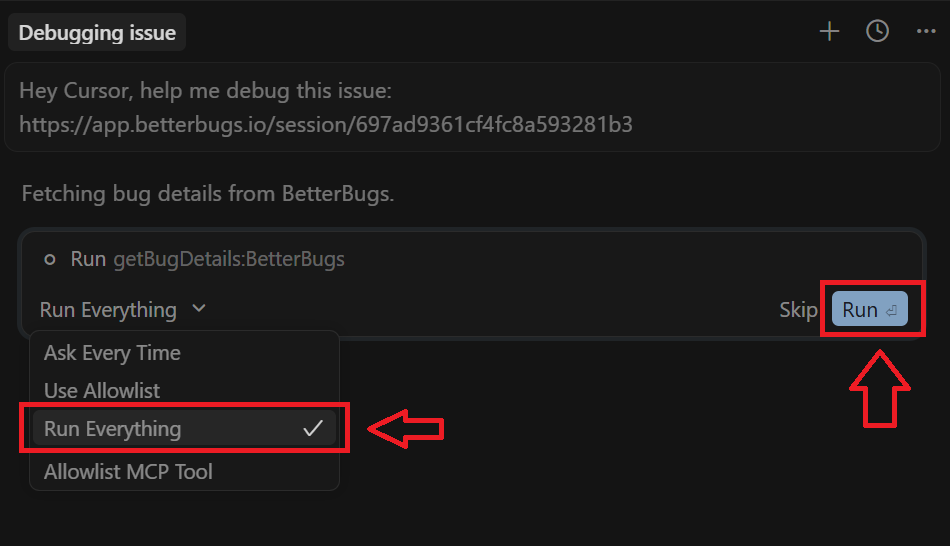
Allow Cursor to access BetterBugs MCP tools
5. Cursor then runs the required tools from BetterBugs to help debug and fix the issue: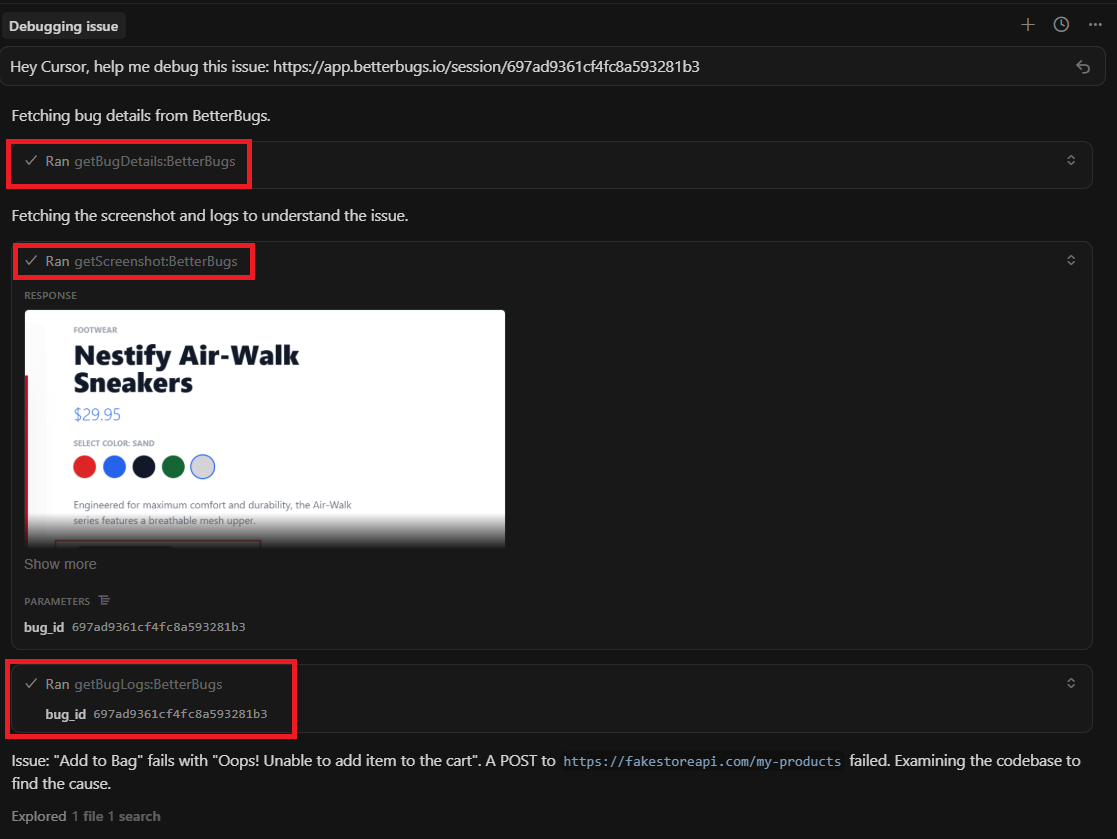 BetterBugs MCP Tools Utilized by Cursor for getting complete context and issue details
6. Once fixed, you can validate the fix and apply changes to your code. Or, you continue with Cursor to carry on debugging.
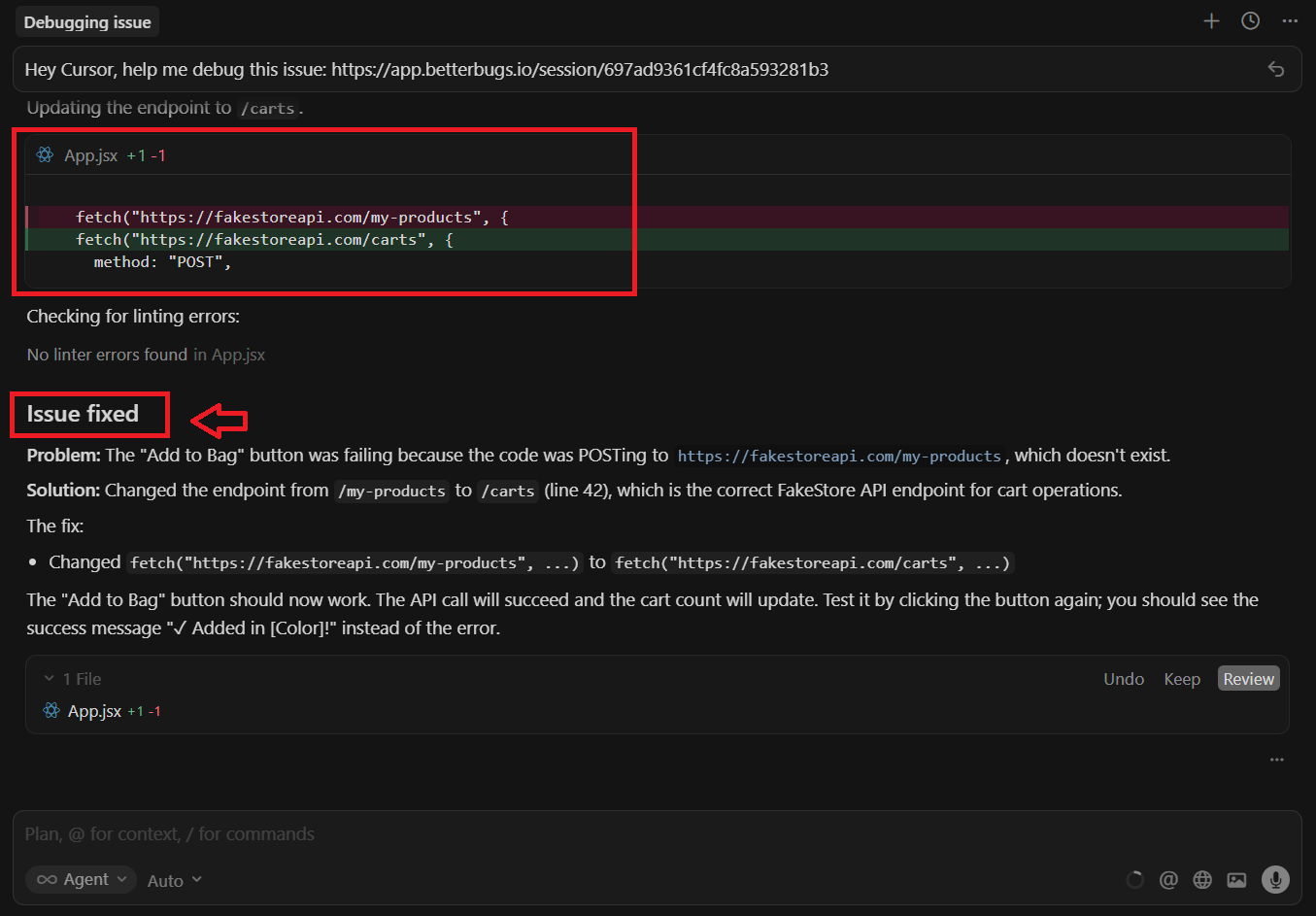
Possible Fix for the Issue by Cursor + BetterBugs MCP
Nishil is a successful serial entrepreneur. He has more than a decade of experience in the software industry. He advocates for a culture of excellence in every software product.
Meet the Author: Nishil Patel, CEO, and Co-founder of BetterBugs. With a passion for innovation and a mission to improve software quality.
We never spam.