
Share your experience with the founderhere!

Nishil Patel
Sep 23, 2026
5 min read
Last Updated Sep 23, 2026

Check out the steps to turn Microsoft Teams messages into technical, crisp, and actionable bug reports using BetterBugs.io in 2026.
1.
Introduction
2.
How BetterBugs.io Can Help — Free Bug Reporting Chrome Extension for MS Teams
3.
How to Create and Share Bug Reports as Instant Message on MS Teams Channel in 2026: Easy Steps
4.
FAQs
When you come across a software bug, the last thing you want is to disrupt your workflow by switching multiple tools or browser tabs just to report it. If your team already collaborates in MS Teams, bug reporting should happen right where your conversations flow, not in some separate system that nobody checks regularly.
Here’s where things get really tricky. Manual bug reporting is a slog, especially when you want to report it via a messaging app, such as Teams. You have to capture visual proofs, document repro steps, gather technical details and error logs in a text file, and then figure out where to post it all. By the time you’ve assembled all this info, you've lost a good 20-25 minutes and probably interrupted your focus completely.
This workflow gap becomes even more frustrating when your team relies on Teams for everything else. You’re discussing features in Teams channels, coordinating releases in threads, and sharing updates through notifications. Yet bug reports end up buried in chats, with their details scattered across emails or other threads like puzzle pieces.
Also Read: How to write effective bug reports: Step-by-Step
BetterBugs.io is a free bug reporting tool for MS teams. It automates the complete process of creating developer-friendly bug reports that you can share instantly on your MS Teams channels as actionable messages.
Your entire team stays in one place, discussions remain contextual, and bugs get the immediate visibility they deserve.
Also Read: What is Bug Tracking?
Here’s what BetterBugs.io brings to the table:
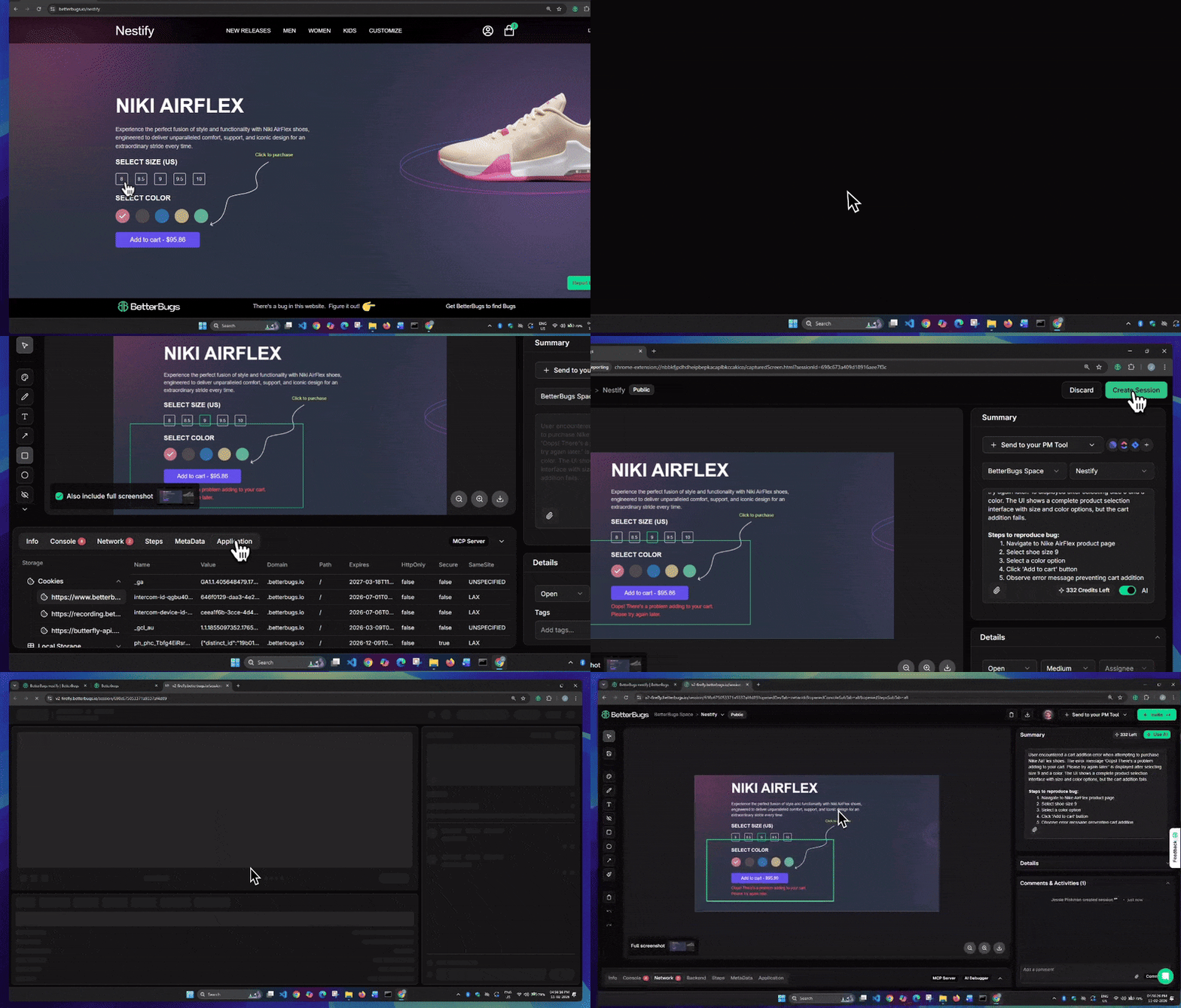
Create Bug Report in a Few Clicks to Share on MS Teams using Report Link, Right From Your Browser | Video Demo
When you take a screenshot or record screen of the bug using BetterBugs, for every bug report, it auto-captures and attaches:
All this technical context gets packaged into a comprehensive report without any manual gruntwork or missing info or endless to-and-fro.
Plus, you can use the "AI" toggle to instantly generate clear bug summaries and detailed issue repro steps.Alternatively, you can add details manually.
Even non-technical team members can create developer-friendly reports that include all the info needed for effective debugging sessions.
Also Read: Why Traditional QA Trackers Fail and How BetterBugs Fixes it
You can post reports directly as Teams messages with complete visual evidence and technical details embedded. The formatting is clean, scannable, and includes a link to the full report for devs who need deeper technical context.
BetterBugs integrates with MS Teams at the channel level. So, you can route different types of issues as required. Critical bugs can go straight to your development channel, UI issues to the design team, and CI/CD issues to DevOps — all with complete technical details in one place.
Also Read: Why every CI/CD pipeline needs a visual bug tracker
BetterBugs.io comes with an integrated AI Debugger (in a chat-style format) that gives you an instant root cause analysis, including possible solutions, test cases, and conclusion. This allows you to resolve issues much faster than just relying on manual debugging.
You can also integrate BetterBugs.io with 15+ project management tools, issue trackers, and collaboration platforms, such as Jira, Asana, Trello, Slack, and many others.
Also Read: What are Issue Types in Jira?
BetterBugs MCP connects bug reports directly to your preferred AI agents and IDEs (Cursor, VS Code, Windsurf, Claude Code, and others):
First, install the BetterBugs Chrome extension and sign up using your email. You can also use a Google or GitHub account for it. This enables you to get your own BetterBugs dashboard for managing reports from one place. For quick access, you can pin the extension on your browser.
Also Read: How to Report a Bug in Jira: Step–by-Step Guide
This completes the integration.
This opens a new tab with the Teams Task instantly posted on the selected Channel. The task includes the environment info, visual proof, summary and steps to reproduce, and other details. You can access the complete report with the BetterBugs report link included in the task. You can also view the Teams message under the “Comments & Activities” tab in your BetterBugs report.
Nishil is a successful serial entrepreneur. He has more than a decade of experience in the software industry. He advocates for a culture of excellence in every software product.
Meet the Author: Nishil Patel, CEO, and Co-founder of BetterBugs. With a passion for innovation and a mission to improve software quality.
We never spam.