Loading...
Loading...
Loading...
Loading...
Loading...
Loading...

About

  • BetterBugs
  • Our Story
  • Blog
  • Glossary
  • Docs
  • Code of Conduct

Legal

  • Terms & Conditions
  • Privacy Policy
  • Cancellations & Refunds

Features

  • Record Screens
  • Create Markups
  • Developer Logs
  • Rewind
  • Collaborate with Team
  • Integrate with Project Tools
  • AI Assistant

Integrations

  • Slack
  • Jira
  • Linear
  • ClickUp
  • Asana
  • GitHub
  • MS Teams
  • Trello
  • Sentry
  • Azure Boards

Use Cases

  • QA Engineers
  • Developers
  • Managers
  • Support Teams
  • Founders
Logo

© 2026, All Rights Reserved

Nothing here!
Show us some love 💖. Try BetterBugs today if you haven’t already. A quick feedback and a rating on our Chrome web store page would be awesome!

Share your experience with the founderhere!

Don’t wait! Start reporting now.

Logo
  • Products

  • Solutions

  • Integrations

  • Resources

  • Pricing

  • BB for Support

  • MCPNew

Login
Logo

[2026] Basecamp Bug Reporting: How to Create Basecamp Tasks for Bug Tracking

Nishil Patel

Nishil Patel

Sep 24, 2026

5 min read

Last Updated Sep 24, 2026

Last Updated Sep 24, 2026

Share

[2026] Basecamp Bug Reporting: How to Create Basecamp Tasks for Bug Tracking

Check out the easy steps to create bit-perfect and actionable bug reports on Basecamp in 2026 using BetterBugs.io. Learn how BetterBugs.io perfectly fits the bill for bug reporting, bug tracking, and bug management processes on Basecamp.

Table of Contents

1.

Introduction

2.

What is Basecamp and how software teams use it?

3.

How BetterBugs.io can help — Free Bug Reporting Chrome Extension for Basecamp

4.

Creating Basecamp Tasks as Actionable Bug Reports: Easy Steps

5.

FAQs

Introduction

Basecamp is used by many for managing projects and collaborative work in an intuitive way. However, for bug reporting workflows, using Basecamp can slow you down as you need to add details for the issues manually. This is where BetterBugs.io comes in. It's a lightweight and snappy free Chrome extension to create Basecamp tasks as fully-fledged bug reports in minutes. 

In this article, we’ve provided a step-by-step guide to create developer-friendly bug reports using BetterBugs.io and share as Basecamp cards with a few clicks, right from your browser.

What is Basecamp and how software teams use it?

Basecamp is a web-based project management tool preferred by many for its simple-to-use yet powerful collaboration features. Teams primarily use Basecamp to manage projects through to-do lists, card tables, message boards, file sharing, and real-time chat.​

Even though Basecamp is not built specifically for bug reporting or bug tracking, software teams often use it for such purposes. Here's how:​

  • Triage — You can create a "Triage" column (or at the top) in Card Tables where new bugs get added first. This gives a quick place to log issues before someone picks them up.​
  • Bug Lifecycle Stages — You can create cards in the Kanban-style Card Table similar to stages in a typical bug lifecycle (New/Open, In Progress, Fixed, and others)
  • Task Lists for Bug Categories — You can create different to-do lists and organize bugs by type, severity, or feature area. For example, one list for "Login Issues" and another for "Payment Issues"​
  • Tagging System — You can add tags like [Bug], [Design], or [Review] to task names so others can know what type of work it is. This can greatly help other team members to find relevant tasks.​
  • Project-Based Organization — Each software project gets its own Basecamp project with dedicated bug tracking lists. This can help keep issue lists or bugs organized by feature or releases.​

While Basecamp works perfectly for a slew of project management tasks, it has gaps for proper bug tracking, such as

  • No Built-in Bug Fields — No priority levels, severity ratings, or bug status workflows like dedicated bug trackers have.
  • Manual Technical Data while Creating Tasks for Bug Reports  — Developers need browser info, console logs, and environment details to fix bugs. In Basecamp, reporters (Quality Assurance (QA) or testing team members) have to manually gather and paste this information.
  • Limited Search and Filtering — Hard to find specific bugs when you have many logged.

Also Read: Easiest Way to Report a Bug in Jira: Step-by-Step Guide

How BetterBugs.io can help — Free Bug Reporting Chrome Extension for Basecamp

BetterBugs enables you to create context-rich and technically sound bug reports in a few clicks that you can instantly share as a Basecamp task. It’s perfect for your everyday bug reporting workflows while managing projects on Basecamp. 

It’s intuitive, has a zero-learning curve, and has no-code setup; perfect for tech and non-technical users as an everyday companion for bug reporting, QA and software testing processes.
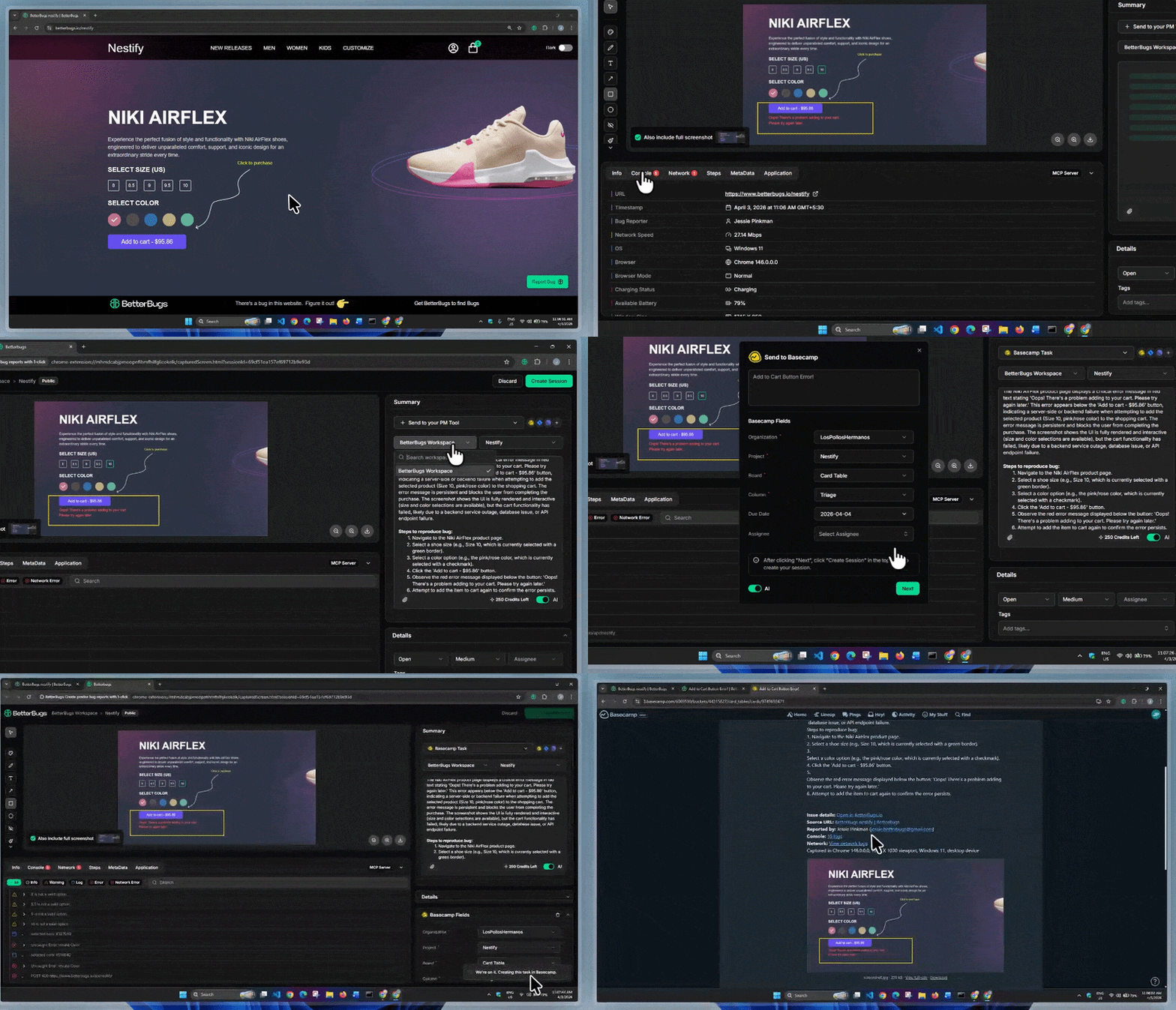
Create Basecamp Task using BetterBugs as a Detailed Bug Report

Create Basecamp Task using BetterBugs as a Detailed Bug Report

BetterBugs Top Use Cases

  • Visual bug reporting
  • Bug tracking
  • UI/UX issue reporting 
  • Bug bashes and beta testing
  • End-user feedback gathering for debugging purposes (Feedback SDK Widget)
  • Manual debugging using all the devtools and technical info auto attached to every bug report
  • AI debugging using AI-Debugger + MCP Server
  • Quality Assurance and Quality Control Overall

What BetterBugs Brings to the Table

You do not have to manually gather all the information while reporting bugs for your project. BetterBugs automates the evidence gathering for you, making the Basecamp task creation (for bug reporting) to Basecamp significantly faster. 

You do not have to juggle tools or copy paste info. You can do this right from your browser in a few clicks!

All you need is to take a screenshot or record your issue screen using the BetterBugs free Chrome extension. Or you can click the “Rewind” button to get the last 2-minute video session of your browser; perfect for getting visual evidence instantly for bugs that just happened.

Using the “AI" button, you can auto-generate:

  • Bug title, 
  • Bug summary, and 
  • Steps to reproduce the bug. 

BetterBugs auto-captures the technical details (console logs, network requests, system info, environment info, backend event logs with Sentry integration, and others) and auto-bundles to your report. 
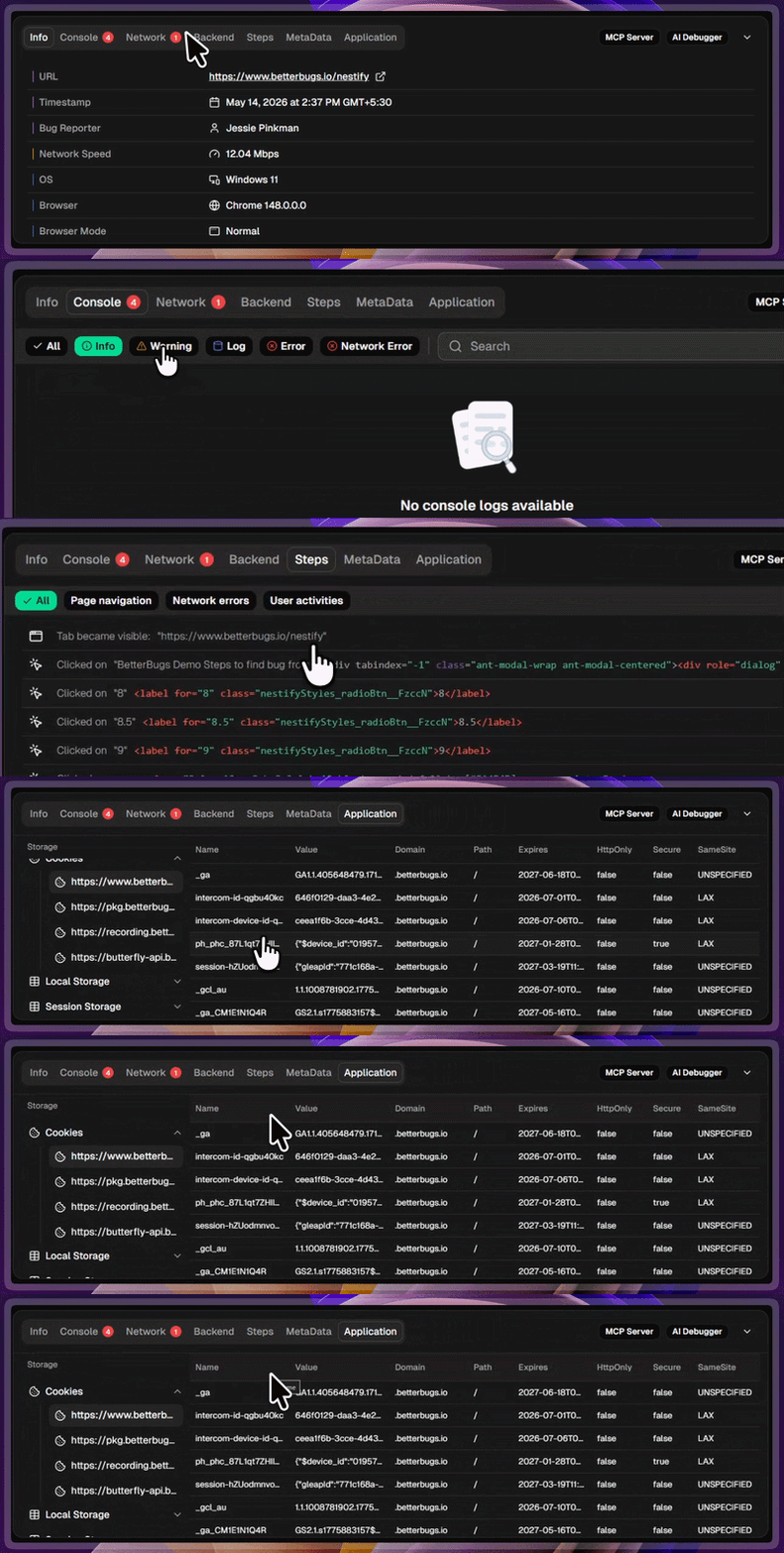
Debugging Details Captured with Every Bug Report | Info, Console, Network, and others

Auto-attached technical details attached to every bug report

3 Ways to Debug using BetterBugs Report

For debugging using the report, you can run:

  • Manual debugging sessions using all the visual and technical info of the bug; all auto-bundled with the bug report. 
  • Integrated AI Debugger in a chat-style tab for all your BetterBugs bug reports. Use it to get instant root cause analysis, possible solutions, test cases, and other info for bugs; perfect for AI-assisted debugging sessions.
  • MCP Server for debugging with your AI tools and text editors (VS Code, Cursor, Windsurf, Claude Code, and others). After installing the MCP server (using a small code snippet), add the bug report link + prompt for your AI agents to debug with all the context and details they need (facilitated through the bug report link via MCP connection) 

Integrates with your PM tools and issue trackers

Apart from Basecamp, you can also integrate BetterBugs with your preferred issue trackers and project tools, such as:
  • Jira
  • Asana
  • Linear
  • GitHub
  • GitLab
  • And many others

Create Basecamp Tasks as Actionable Bug Reports 10X Faster

Creating Basecamp Tasks as Actionable Bug Reports: Easy Steps

BetterBugs Quick Installation and Account Setup

  1. Kick things off by downloading the BetterBugs extension from Chrome Web Store. 
  2. Sign up using email, Google or GitHub account. This enables you to keep all the bug reports (that you create with BetterBugs) in your own dashboard; perfect for managing reports from a central Workspace/Project. 
  3. Pin the extension to your browser for quick access.

BetterBugs and Basecamp Integration Steps (No-code setup in under 30 seconds)

BetterBugs and Basecamp Integration

BetterBugs and Basecamp Integration

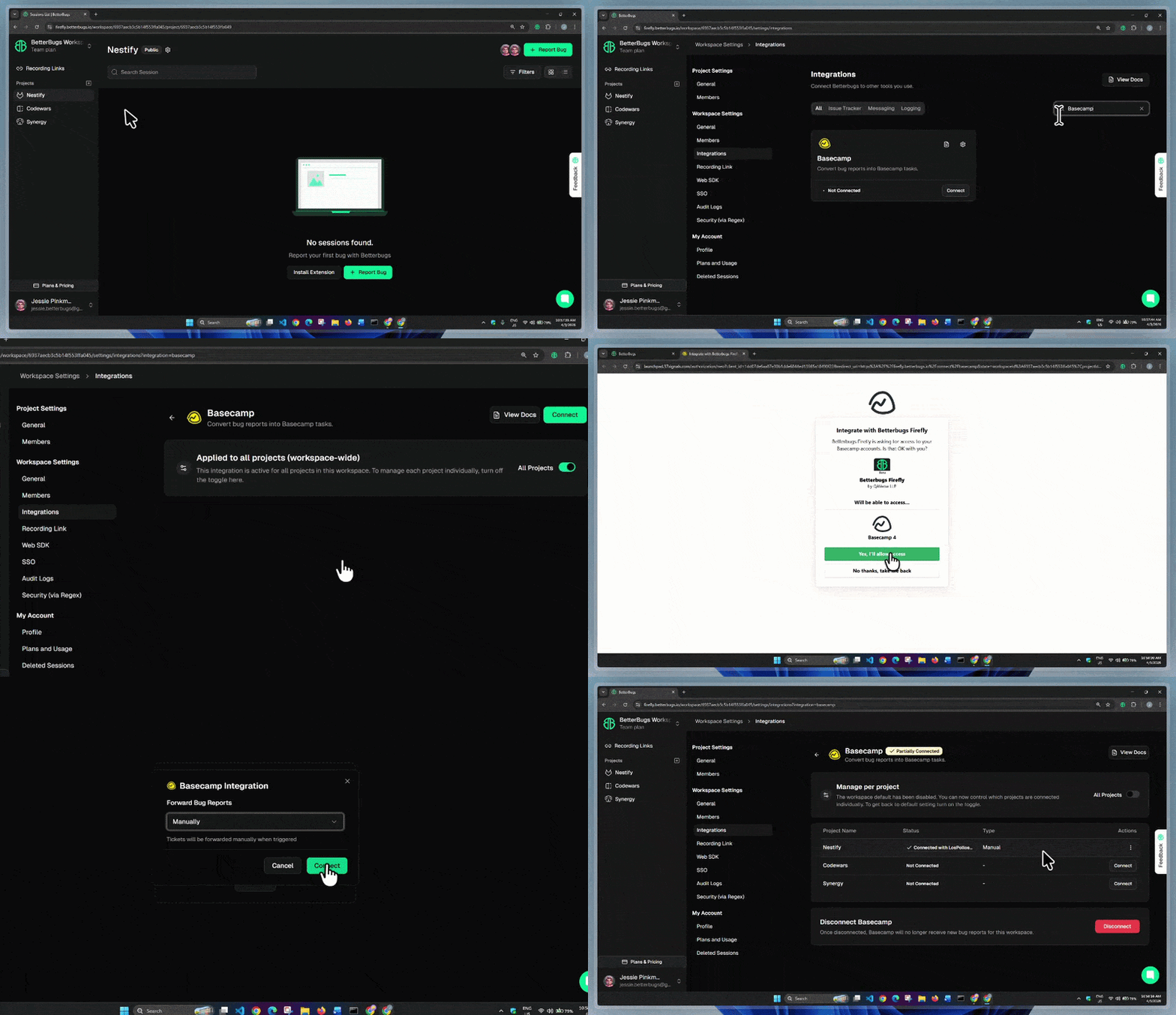
  1. Go to Integrations: Click your Workspace name (top-left) > Gear icon (Workspace Settings) > Integrations.
  2. Find Basecamp: Search for Basecamp in the Integrations tab and open its card.
  3. Disable Workspace-Wide Integration: Toggle off All Projects and click Continue to enable the "Manage per project" option.
  4. Connect a Project: Find your project in the list and click Connect in the Actions column.
  5. Authorize: Authorize BetterBugs.io for your Basecamp Workspace. (NOTE: Free plan users DO NOT NEED STEP 6 and 7. Manual forwarding is the default free feature; Automatic forwarding is available on Teams and Enterprise plans)
  6. Select Report Forwarding (Paid Plans): From the Forward Bug Reports dropdown, select 
    1. Manually: You’d have to populate the Basecamp fields for the task 
    2. Automatically: Pre-configure Basecamp task fields for one-click report sharing.
  7. Click Connect.

Okay! You’re good to go with the integration.

Easy Steps for Creating Perfect Bug Reports as Basecamp Tasks (Takes less than 2 minutes)

Create Basecamp Task using BetterBugs as a Detailed Bug Report

Create Basecamp Task in a Few Clicks Using BetterBugs | Demo

  1. Capture the bug and add details: Grab the issue using the BetterBugs extension. Type out the bug title, summary, and bug repro steps manually, or let the AI toggle auto-generate them.
  2. Select BetterBugs workspace and project: Use the two dropdowns above the description box to select your BetterBugs Workspace and the specific Project connected to Basecamp.
  3. Select tool: Open “+ Send to your PM Tool” dropdown and choose Basecamp Task.
  4. Fill in the task info: Populate Basecamp fields (Organization, Project, and Column). Hit “Next”.
  5. Confirm and Share: Click “Create Session” in the top-right corner to finish up and push your report straight to Basecamp.

You can access the complete bug report using the report link from your Basecamp task that you just created. Plus, use the “Comments & Activities” section in the bug report to access your Basecamp task!
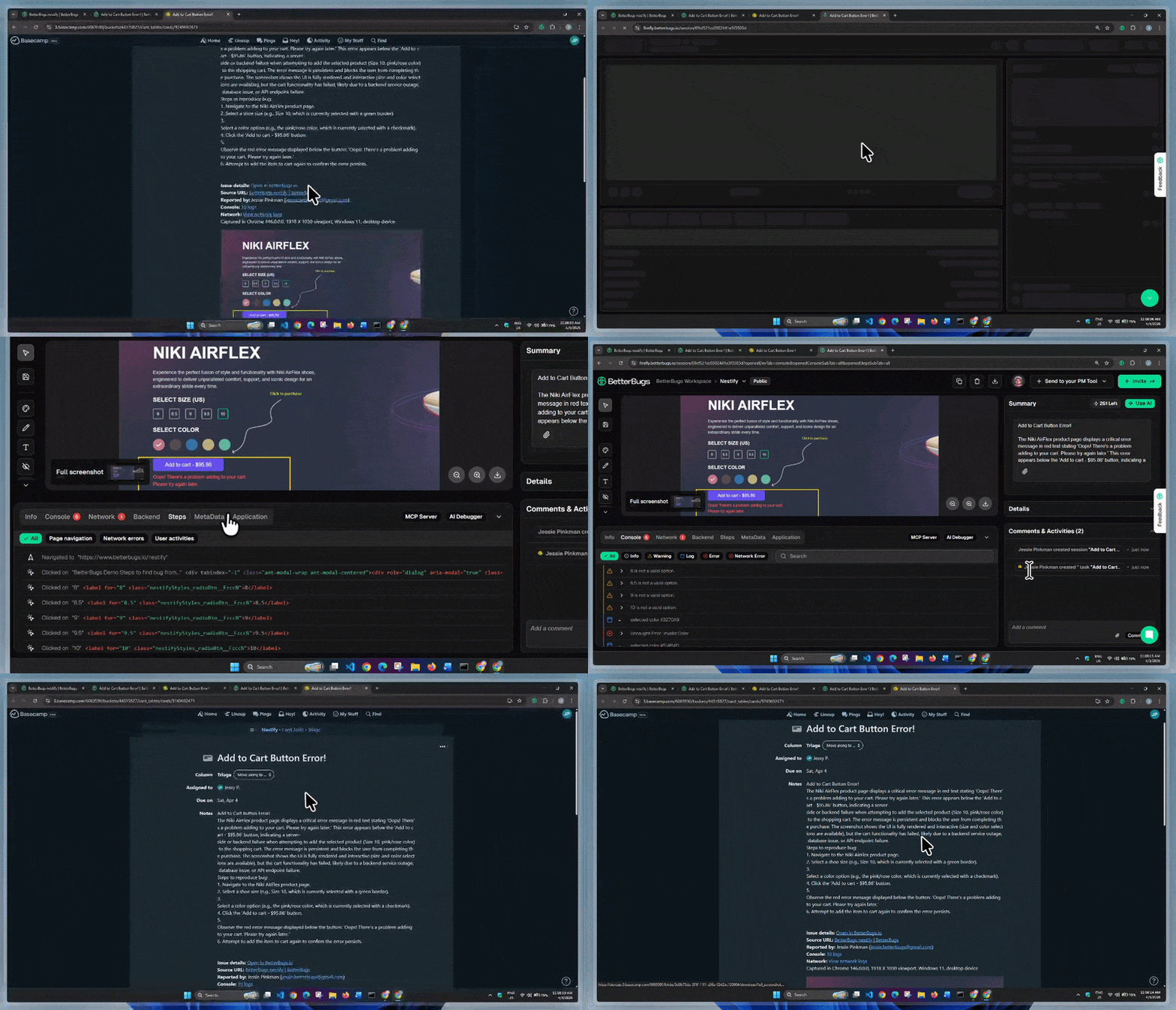
Access Bug Report from Basecamp Task and Vice Versa

Access Bug Report from Basecamp Task and Vice Versa

Capture Front and Backend.Share.And Debug Using AI

FAQs

Can I use BetterBugs with existing Basecamp projects?
What technical details does BetterBugs automatically capture?
Can I edit bug reports after sending them to Basecamp?

Yes, you can edit the task details directly in Basecamp like any other task. Plus, BetterBugs reports are fully editable as well. You can also access the full BetterBugs report through the link in the Basecamp task.

Does BetterBugs work with Basecamp's Card Tables or just to-do lists?
Written by
Nishil Patel

Nishil Patel | CEO & Founder

Follow

Nishil is a successful serial entrepreneur. He has more than a decade of experience in the software industry. He advocates for a culture of excellence in every software product.

Subscribe to our updates

Meet the Author: Nishil Patel, CEO, and Co-founder of BetterBugs. With a passion for innovation and a mission to improve software quality.

We never spam.