
Share your experience with the founderhere!

Nishil Patel
Aug 14, 2026
5 min read
Last Updated Aug 14, 2026

Check out the easy steps to create actionable bug reports on Zoho Bug Tracker using BetterBugs. Learn how BetterBugs.io enables you to automate the repetitive and time-consuming process of bug reporting with just a few clicks while you manage bug tracking workflows on Zoho.
1.
What is Zoho Bug Tracker?
2.
How BetterBugs.io can help — Free Bug Reporting Chrome Extension for Zoho Bug Tracker
3.
How to Create Bug Reports on Zoho Bug Tracker using BetterBugs.io
4.
FAQs
Zoho Bug Tracker is a dedicated bug tracking module that works both as a standalone tool and as part of Zoho Projects. It’s one of the many business tools offered in Zoho software suite. You can use it as a central tool to record, prioritize, track, and resolve bugs throughout the bug lifecycle.
The tool offers customizable workflows, automated business rules, SLA management, and detailed reporting capabilities. You can submit bugs manually, via email, or through CSV imports. Plus, you can set severity levels, assign issues to specific team members, define milestones, and track time spent on bug resolution. With custom fields and workflows you can tweak it to your specific needs. You can also integrate it with GitHub, Bitbucket, Jira, and other Zoho apps.
While Zoho Bug Tracker handles the tracking side brilliantly, the manual process of creating those bug reports remains a dreaded, time-consuming and cumbersome process for most folks; especially for the quality assurance (QA) and testers.
This is where BetterBugs comes in! It automates the gruntwork and evidence gathering for bug reports before you even reach your tracker.
Also Read: Top 10 Bug Tracking Tools
BetterBugs.io enables you to whip up developer-friendly bug reports with a few clicks that you can instantly share on Zoho Workspace. It’s a lightweight, snappy, and fully fledged bug reporting tool that you can download as a FREE Chrome extension.
All you need is to take a screenshot or record your screen of the bug in your Chrome browser using the extension. BetterBugs automatically captures the developer logs and technical details of the issue and attaches it to the bug report.
You can also use “Rewind” to get the last 2-minutes video session of all browser activities; perfect for capturing bugs that just happened.
You can fill in the bug details using AI and send over to Zoho — right from your browser.
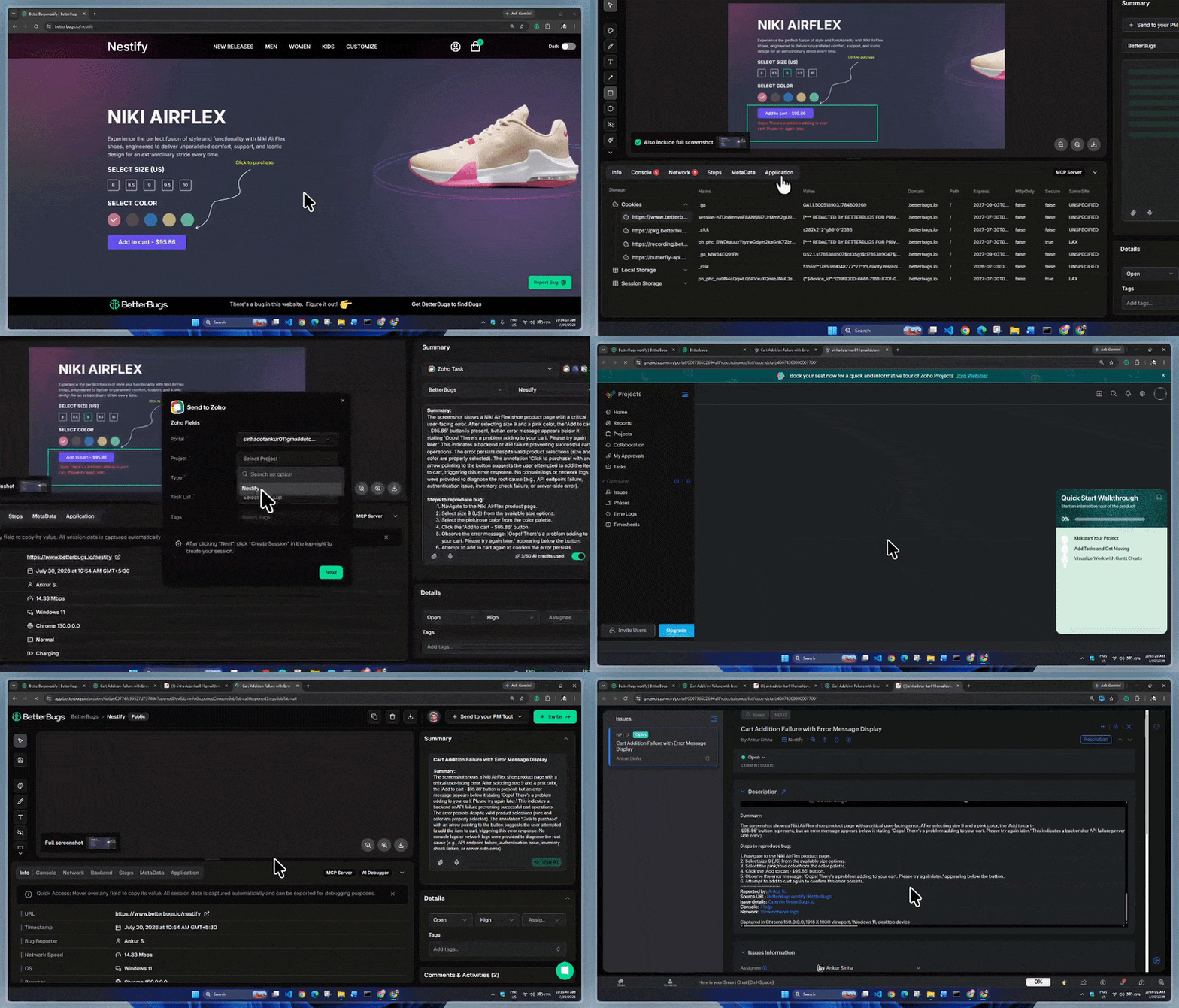
Create Bug Report on Zoho within Minutes using BetteBugs.io
No need to manually copy-paste information or switch between tools and your system for your bug reporting workflows. BetterBugs does that for you!
Simply put, BetterBugs automates the evidence gathering and reporting process of issues for your quality assurance(QA), software testing, bug tracking, support team works, and website feedback gathering workflows.
It’s perfect for technical and non-technical users.
You can create context-rich and data-filled visual bug reports auto-bundled with the debugging details as an actionable report, instantly shareable with others (using the report link) or to Zoho Project.
Every bug report you create with BetterBugs.io comes bundled with:
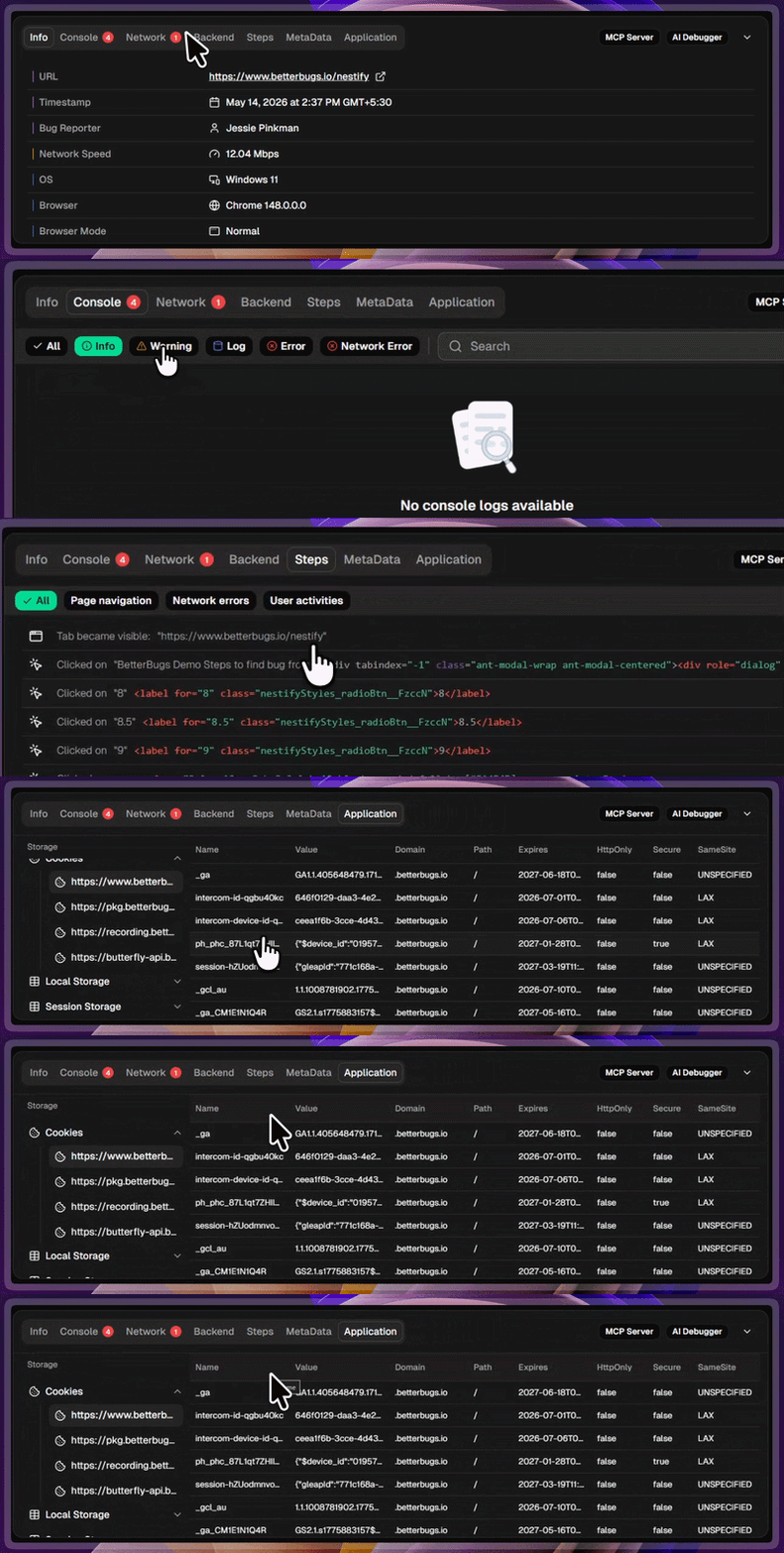
Auto-attached Technical Details to Every Bug Report
You can also integrate BetterBugs with your favourite project tools and issue trackers such as:
You can use the AI Debugger (for BetterBugs reports) to run AI-assisted debugging sessions in a chat style format. Developers can get a possible root cause analysis of the issue instantly combined with the manual debugging skills to fix bugs faster and more efficiently.
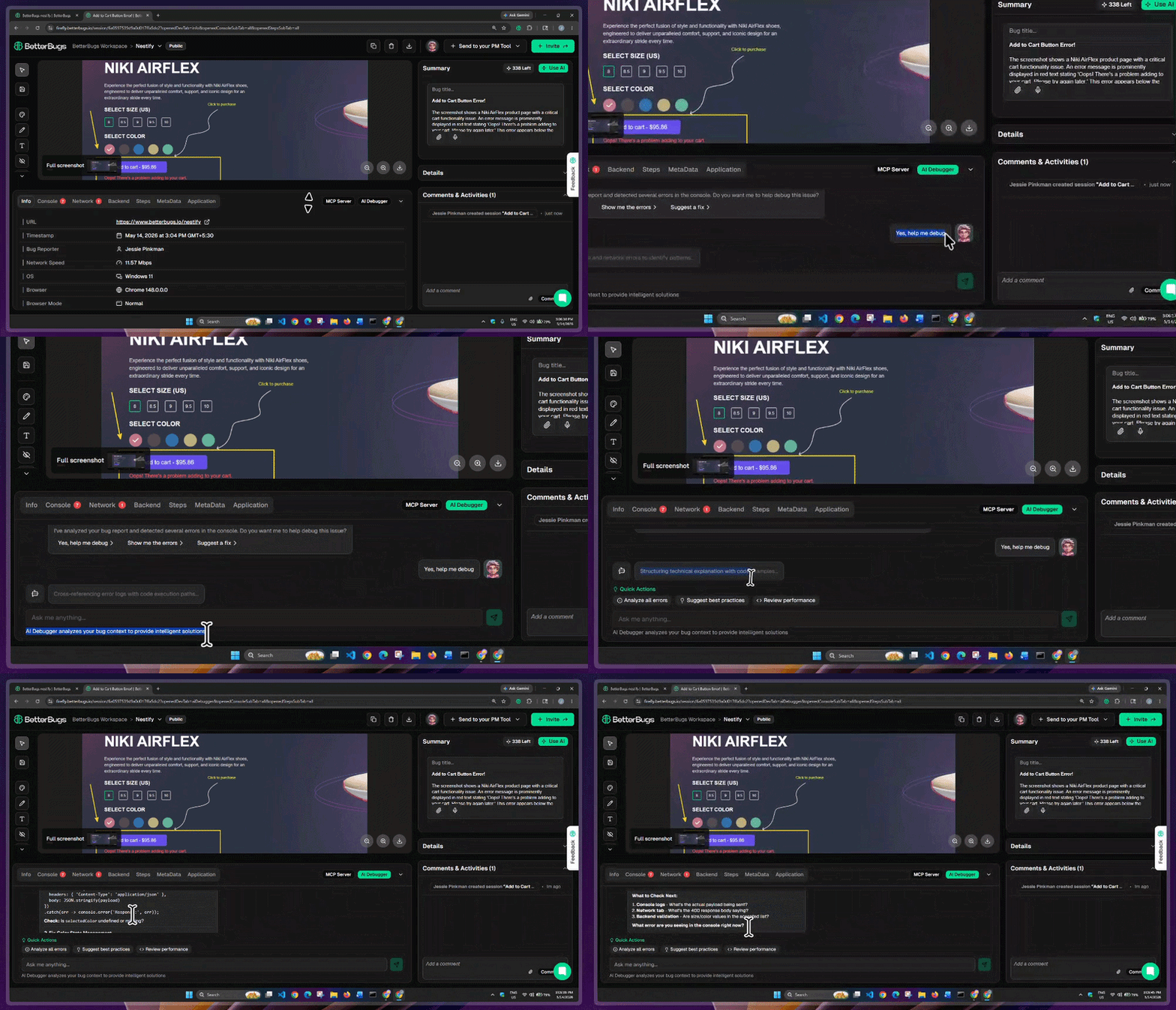
Built-in AI Debugger for BetterBugs Bug Reports
BetterBugs MCP (Model Context Protocol) enables you to load BetterBugs bug reports (via report links) directly to your preferred AI Agents and developer environments with MCP Client capabilities. You can use BetterBugs MCP server with your preferred tools, such as:
Using it, you can run more accurate AI debugging sessions. After installing the MCP server (takes less than 2 minutes), add the bug report link + a quick prompt for resolving your issues in your IDE AI chat window itself.
The MCP server grabs all the context and technical details of the bug using the bug report link; perfect for resolving issues with minimum effort and more accuracy.
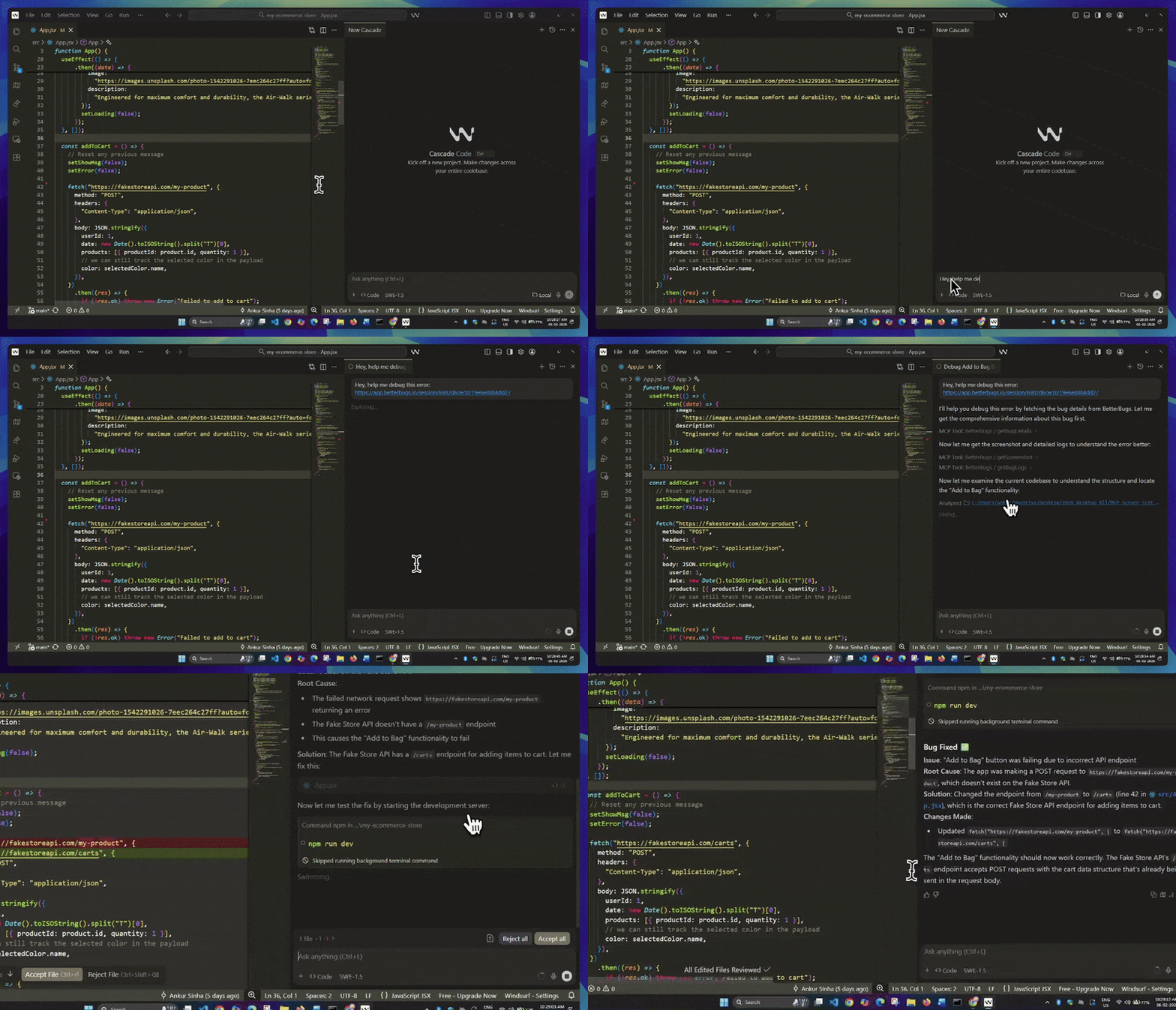
Fixing Code Using BetterBugs MCP + Windsurf in Agent Mode
Bug reporting and tracking, UI/UX issue reporting, beta testing, bug bashes, Running bug lifecycles, Website and web app feedback gathering (using Feedback Widget), Quality Assurance and Quality Control, Software testing overall.
To get started, download the BetterBugs FREE extension from Chrome Web Store. Create an account using your email, GitHub, or Google. This enables you to house all your bug reports in a dedicated BetterBugs Workspace; perfect for managing them centrally. Pin the extension to your browser for quick access.
Once you’re good with the BetterBugs installation part, here’s how to integrate it with Zoho:
1 - Access Workspace Settings: Click your BetterBugs Workspace name in the top-left corner of the app. Click the gear icon and access Workspace Settings > Integrations.
2 - Open Zoho Card: In the Integrations tab, search for Zoho and click its card.
3 - Switch to Per-Project Integration: Toggle off “All Projects” (which is enabled by default for workspace-wide integration for all BetterBugs projects) and click “Continue”. You will now see "Manage per project".
4 - Select a Project: Find the specific BetterBugs project you want to integrate from your Workspace project list. In the "Actions" column next to it, click “Connect”.
5 - Authorize: Authorize BetterBugs.io for your Zoho workspace.
Okay! You’re all set with the integration.
Zoho Bug Reporting using BetterBugs.io: Demo
1 - Capture Bug and Add Details: Use the BetterBugs extension to capture the issue. Fill out the bug details (Title, Quick Summary, and Steps to Reproduce) in the description area. You can type this manually or use the AI toggle to generate the details automatically.
2 - Select Your Workspace and Project: Using the two dropdown menus above the description area, select your BetterBugs Workspace and the specific Project you previously integrated with Zoho.
3 - Send to Zoho: Click on the “+ Send to your PM Tool” dropdown and select Zoho Task.
4 - Populate Task Details: Fill in the Zoho task fields for the report (such as Portal, Project, Type, and Task List), then click “Next”.
5 - Create Session: Click “Create Session” located in the top-right corner.
A new tab opens displaying the task posted directly to your Zoho Bug Tracker. The ticket packs all the bug details and includes a link to the complete report on BetterBugs.
Nishil is a successful serial entrepreneur. He has more than a decade of experience in the software industry. He advocates for a culture of excellence in every software product.
Meet the Author: Nishil Patel, CEO, and Co-founder of BetterBugs. With a passion for innovation and a mission to improve software quality.
We never spam.