
Share your experience with the founderhere!

Nishil Patel
Aug 3, 2026
5 min read
Last Updated Aug 3, 2026
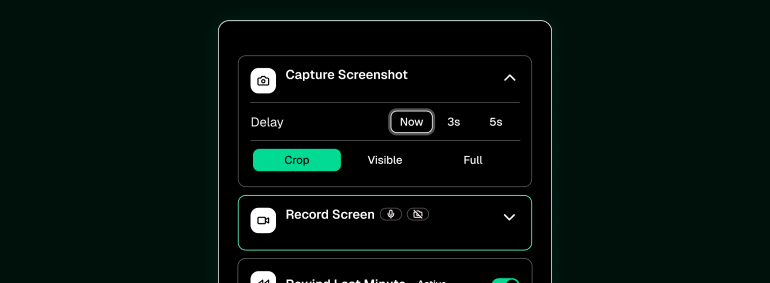
In this article, we’ve curated a list of 6 best screen recorder extensions for Chrome based on their key screen recording capabilities and pricing in 2026.
1.
Introduction
2.
How to select an extension for screen recording in Chrome
3.
6 Best Screen Recorder Extensions for Chrome in 2026
4.
FAQs
With Google Chrome holding the top spot as the most used browser worldwide across all platforms (68.22% market share as of July 2026) , it’s no surprise that screen recorder extensions built for Chrome continue to thrive. Their ultimate goal? To offer useful and intuitive screen recording features without the need for specialized or heavy software.
However, with many options to choose from, finding the right screen recorder for your day-to-day screen recording needs can be tricky. And that’s why, we’ve tested the most popular ones and curated a list of the 6 best Chrome screen recorder extensions in 2026; perfect to make your day-to-day recording tasks faster, easier, and more effective.
Also Read: Top Bug Reporting Chrome Extensions in 2026
Here is a list you can borrow with some critical points to consider while selecting a screen recorder for Chrome:
Also Read: How to clear DNS Cache in Chrome with chrome://net-internals/#dns
Here’s what the list looks like:
Also Read: How to screen record on Windows 10: Ultimate Guide
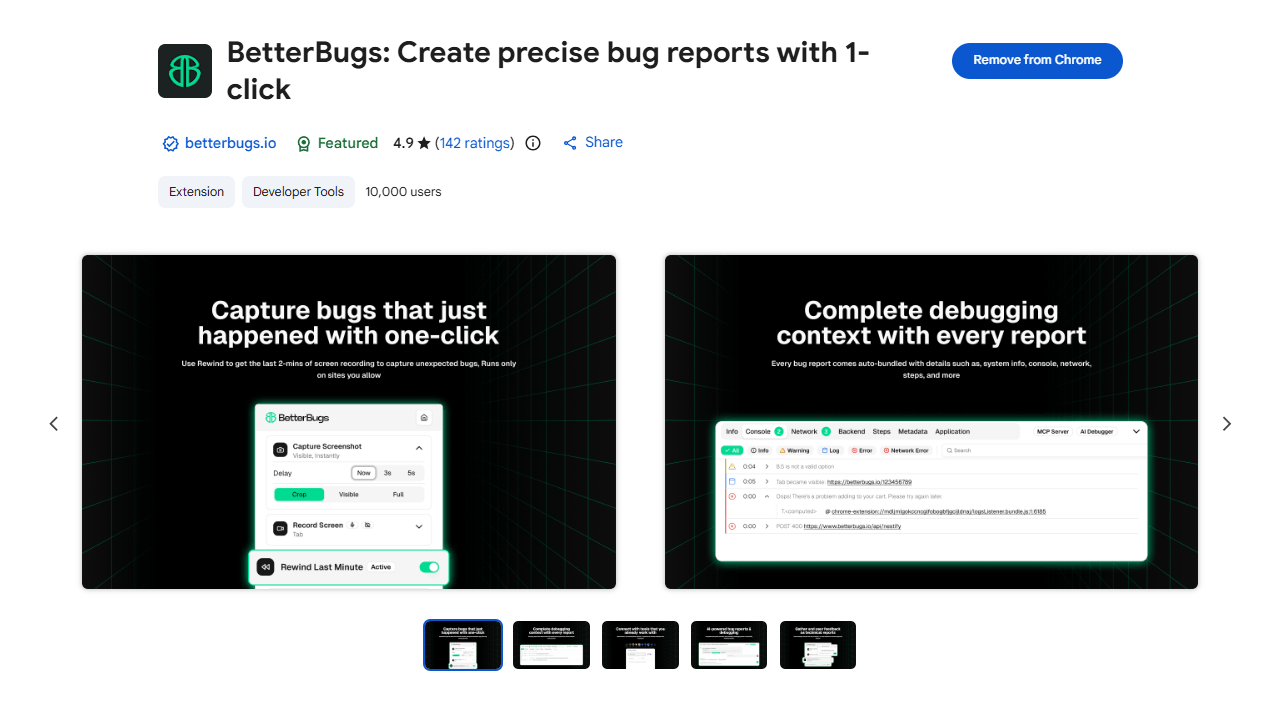
BetterBugs.io is a free, lightweight, and easy to use screen recorder extension for Chrome. Primarily, it’s a fully-fledged bug reporting tool. However, you can use it for your everyday screen recording activities. You can record up to 15 mins of video (5 mins max in the free plan and 15 mins in the paid tier) and download it instantly to your system.
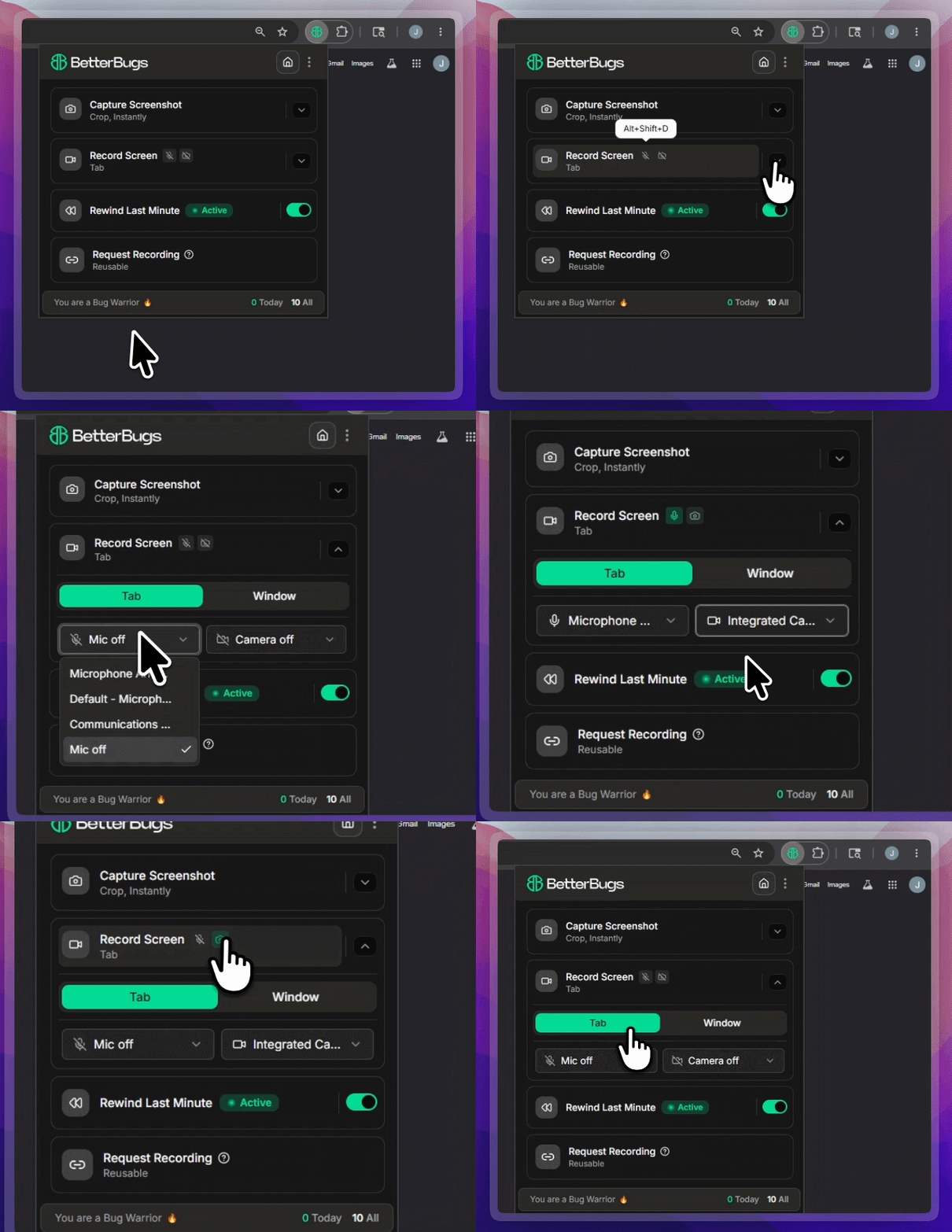
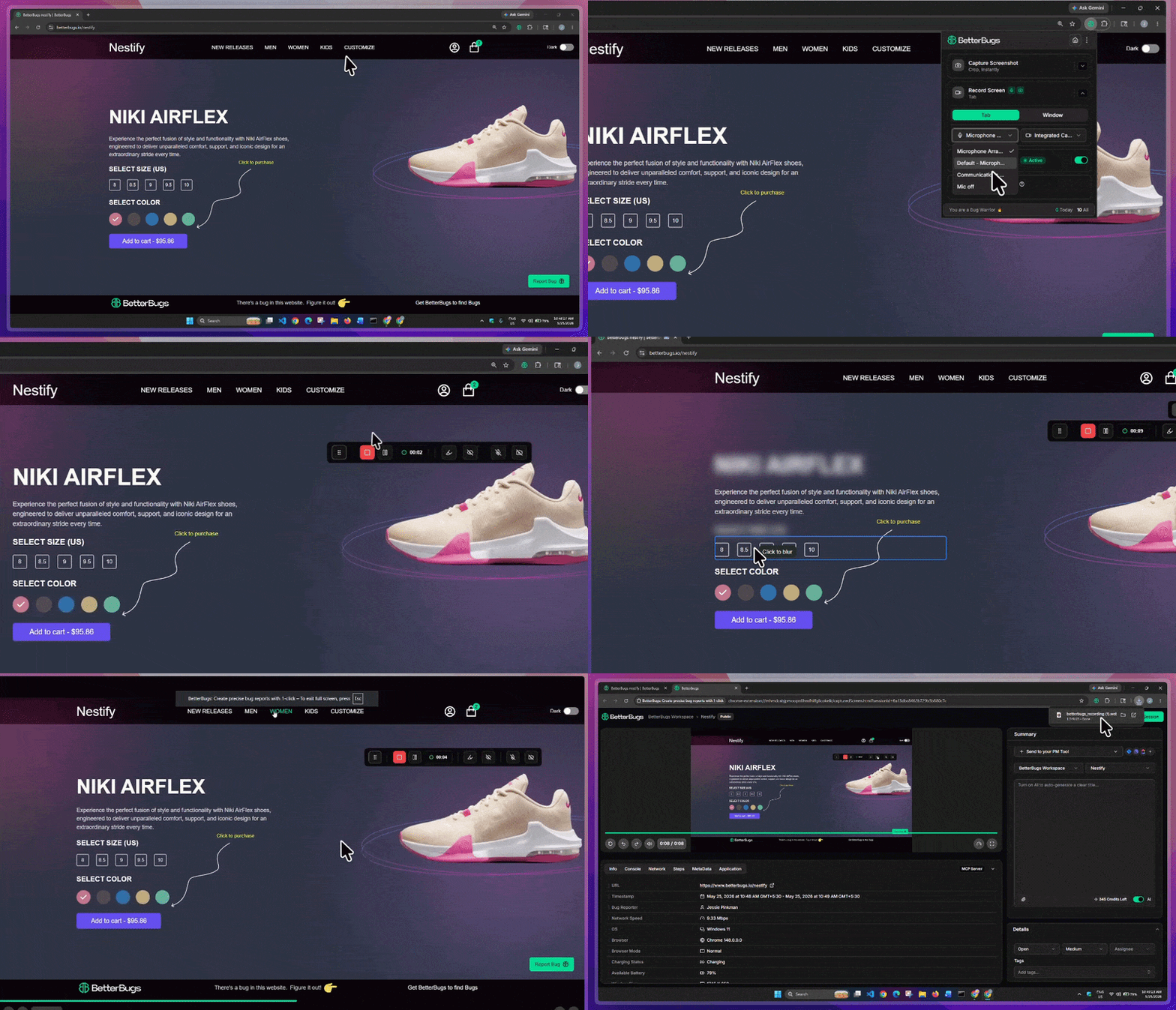
While recording, it also supports system audio and microphone capture. Plus, you can add a webcam overlay to highlight important information and add complete context.
For quick sharing, you can instantly upload the video to a central dashboard (after you create a free account to manage your recordings) and share the report link to others for quick access, preview, and download.
Also Read: How to screen record on Mac: Step-by-step Guide
Also Read: What is Quality Assurance? Explained
Free features
Paid features
Pricing: Two pricing tiers for BetterBugs.io
Also Read: How to screen record on Windows 11 in 2026
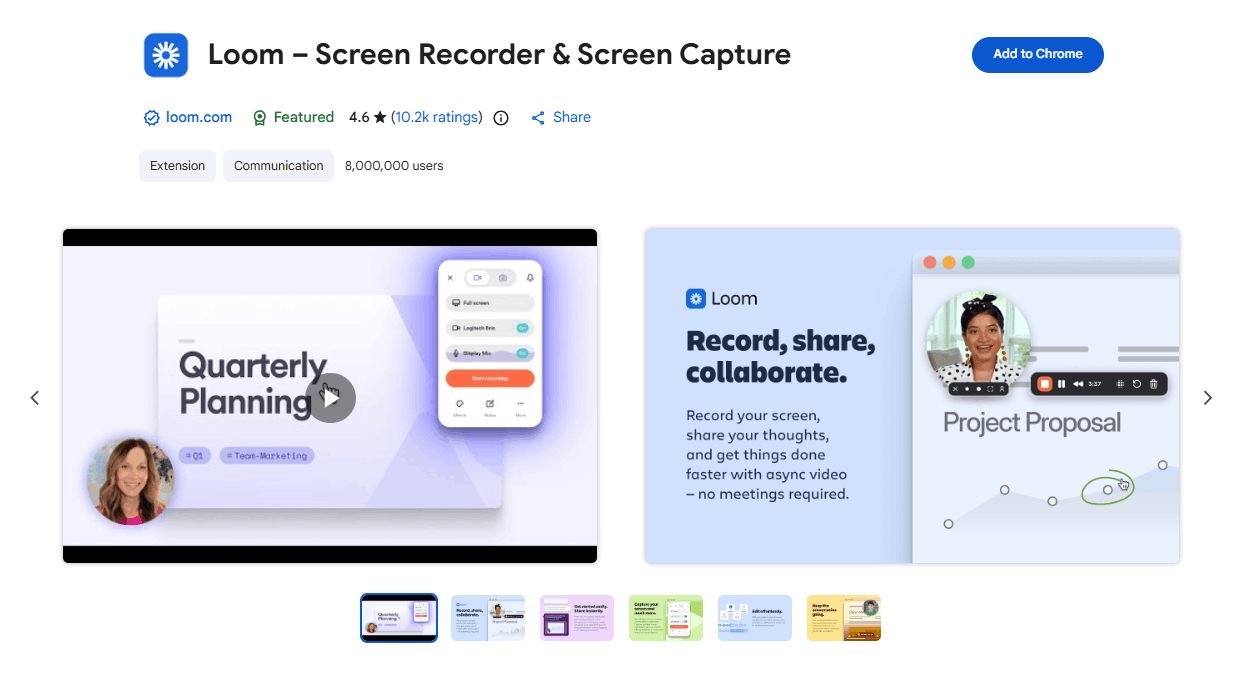
Loom is a video communication and hosting platform that also packs in a screen recorder extension with quick sharing features. With Loom, you can take screenshots and record screens with a webcam overlay and access basic trimming and stitching tools . It also offers blur effects and transcripts in 50+ languages. You can use it with Windows PC, macOS, iOS, and Android.
However, if you’re looking for a free screen recording extension with extensive features, Loom isn’t for you. It only allows up to 5 mins of recording with no upload or download options in the free tier. Plus, you can only record up to 25 videos in the free plan.
Loom starts with a subscription tag of $18 per user/month (monthly basis) for the Business plan. For the Business + AI plan, it's $24 per user/month (monthly basis). There’s also an Enterprise plan with custom pricing.
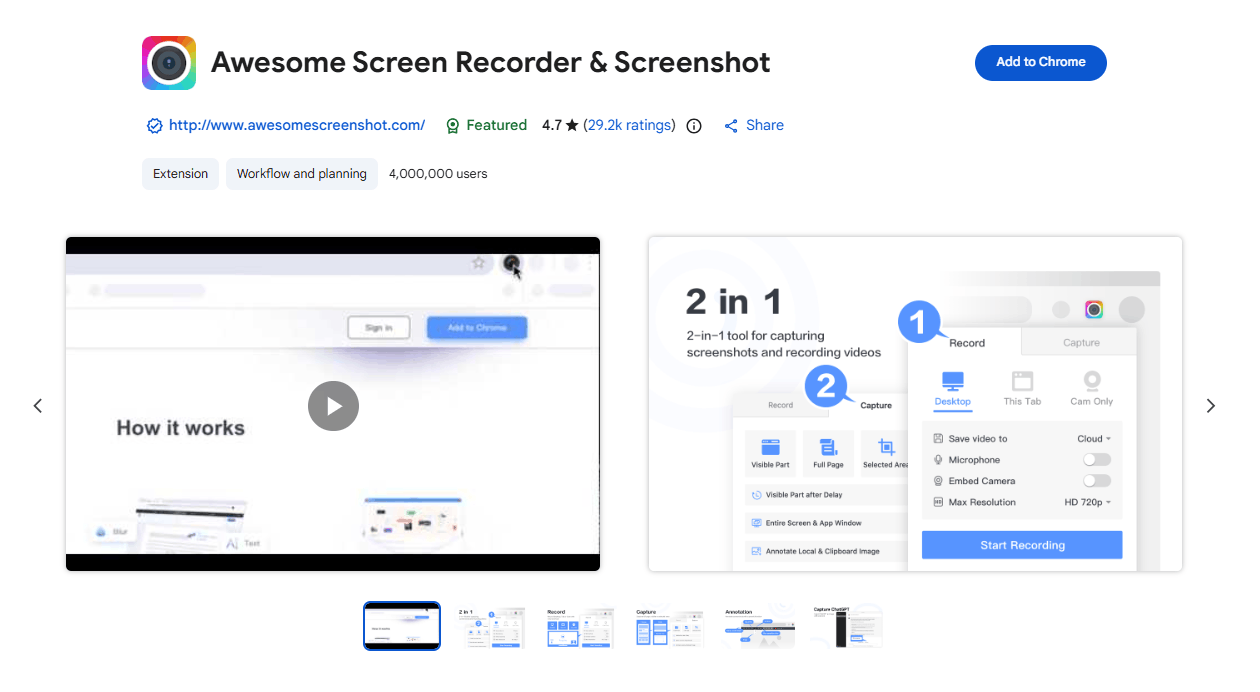
Awesome screenshot is another screen recorder extension that allows you to capture your screen with quick sharing and basic annotation features.
Although it's a pretty popular tool, the free plan limits recordings to 5 min max per video for downloading to your system. Plus, if you’re running a slightly older system, you may experience audio-video sync issues while recording screens with the Awesome screen recorder. Also, it cannot record applications outside your browser. Free users also have a 100-screenshot cloud storage limit; beyond that, you must delete or upgrade.
Awesome screen recorder offers two paid tiers: $6 per month for Basic plan and $8 /month for the Professional plan (Both are monthly billing figures).
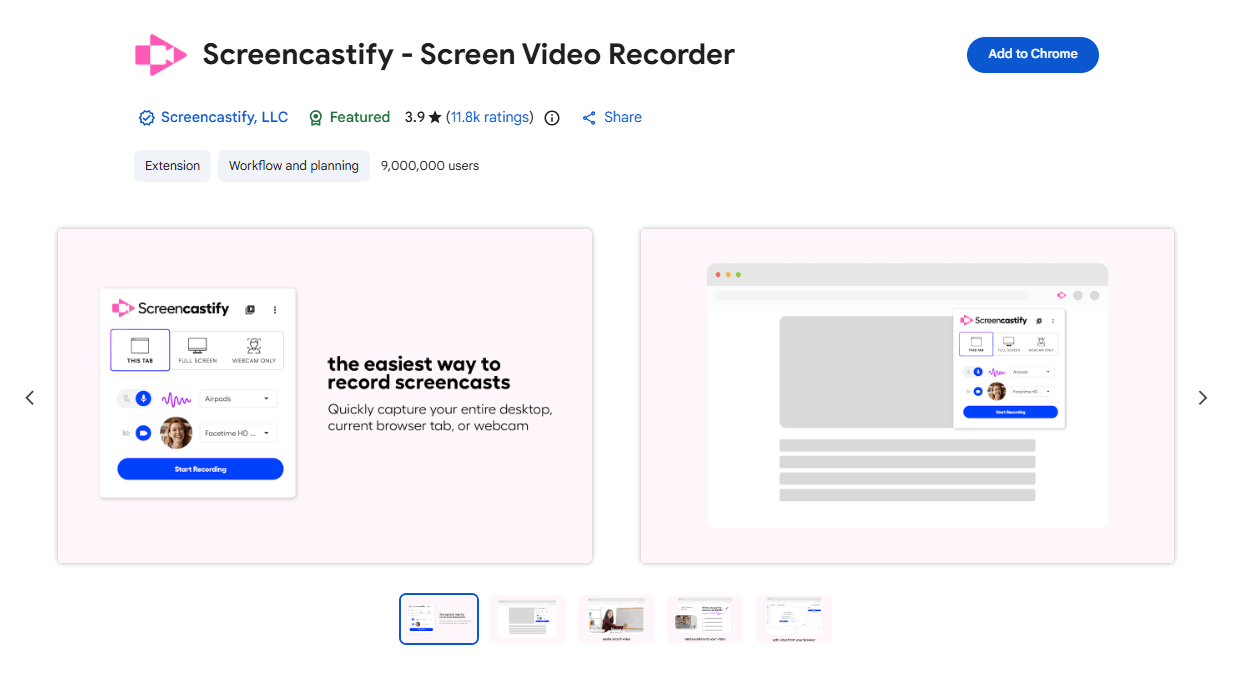
Screencastify is our next pick as a capable screen recorder Chrome extension. It enables you to record up to 10 videos in the free tier with 30-mins max length. However, it comes with a few bells and whistles. Screencastify doesn’t allow you to export MP4 files in the free tier.
The screen recordings come with a watermark in the free plan. In the previous free plan, you could export 1 video to YouTube. However, there is no such option anymore. Plus, most of the ultra useful features have been paywalled now.
Two paid tiers: $19 per user/month for the Starter plan and $25 per user/month for the Pro plan.
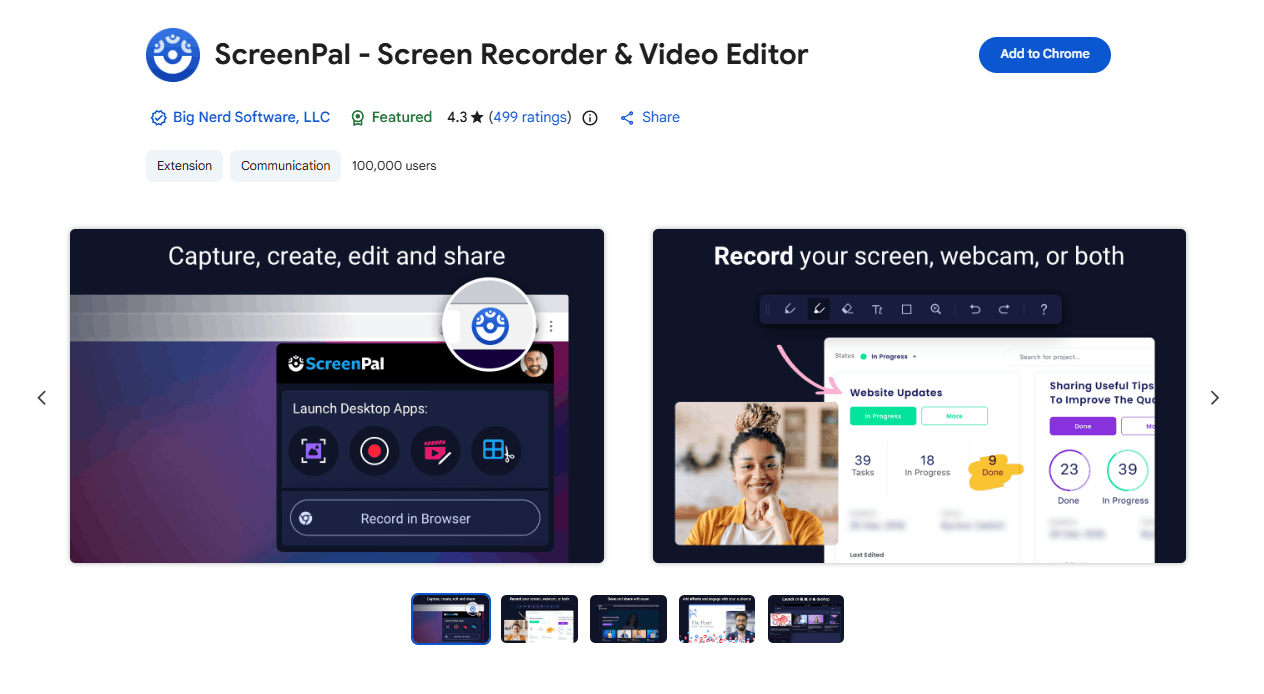
ScreenPal is another good choice as a Chrome extension to record screens for up to 15 minutes (in the free plan). There are no limits for the number of screen recordings. Plus, it also bundles in a screenshot recorder, a video editor, and blur webcam support with easy sharing capabilities.
It’s a decent screen recorder but the UI may feel a bit clunky and sluggish. And the feature to record the system audio (with the screen) only comes with the paid plan, which could be a dealbreaker for most.
Three paid tiers for ScreenPal; comes only with annual billing: Deluxe at $4/month per user, Max at $10/month per user, and Team Business $8/month per user.
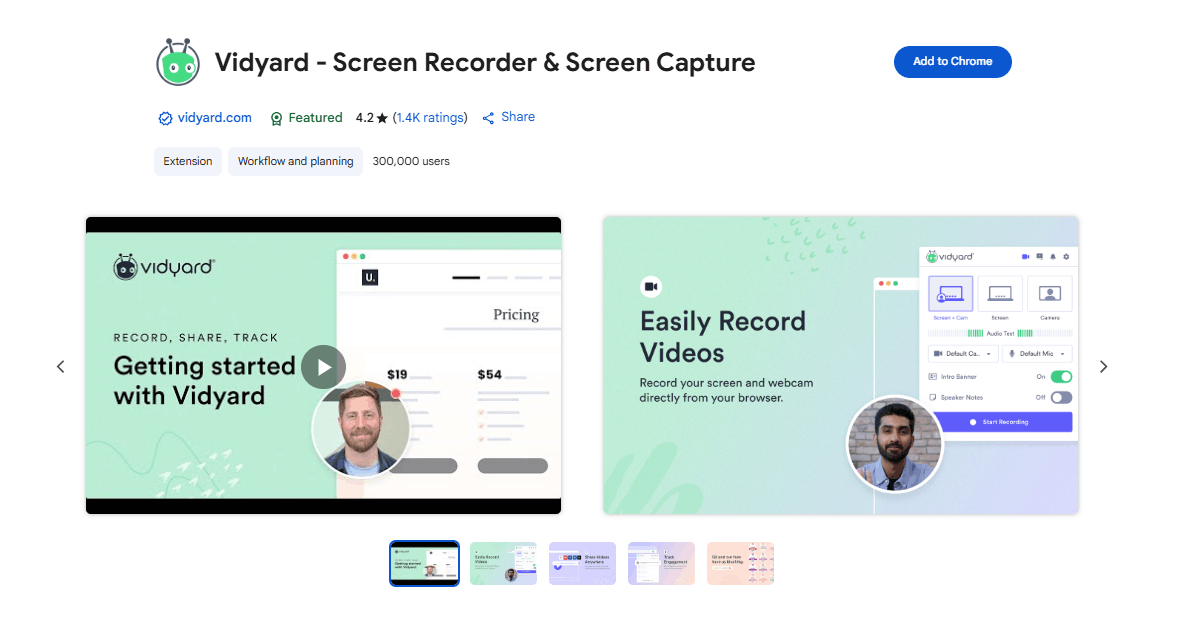
Vidyard is a screen recorder for Chrome that allows up to 30 min of recording in the free plan. The screen recordings are shareable directly to social media sites and email. On the flip side, you cannot download the videos to your system in the free plan forcing you to upgrade to a paid plan. Also, there’s a strict 5 screen recordings/month limit for free users.
Vidyard has three pricing plans; Starter at $59 per seat/month, Teams (with custom pricing), and Enterprise (also with custom pricing)
Nishil is a successful serial entrepreneur. He has more than a decade of experience in the software industry. He advocates for a culture of excellence in every software product.
Meet the Author: Nishil Patel, CEO, and Co-founder of BetterBugs. With a passion for innovation and a mission to improve software quality.
We never spam.