Black FridayUp to 31% off Team plansCode Ends in --d --h --m

Claim now
Loading...
Loading...
Loading...
Loading...
Loading...
Loading...

About

  • BetterBugs
  • Our Story
  • Blog
  • Glossary
  • Docs
  • Code of Conduct

Legal

  • Terms & Conditions
  • Privacy Policy
  • Cancellations & Refunds

Features

  • Record Screens
  • Create Markups
  • Developer Logs
  • Rewind
  • Collaborate with Team
  • Integrate with Project Tools
  • AI Assistant

Integrations

  • Slack
  • Jira
  • Linear
  • ClickUp
  • Asana
  • GitHub
  • MS Teams
  • Trello
  • Sentry
  • Azure Boards

Use Cases

  • QA Engineers
  • Developers
  • Managers
  • Support Teams
  • Founders
Logo

© 2026, All Rights Reserved

Nothing here!
Show us some love 💖. Try BetterBugs today if you haven’t already. A quick feedback and a rating on our Chrome web store page would be awesome!

Share your experience with the founderhere!

Don’t wait! Start reporting now.

Logo
  • Products

  • Solutions

  • Integrations

  • Resources

  • Pricing

  • BB for Support

  • MCPNew

Login
Logo

Top 5 Chrome Extensions for Bug Reporting in 2026

Nishil Patel

Nishil Patel

Jun 29, 2026

5 min read

Last Updated Jun 29, 2026
Last Updated Jun 29, 2026

Share

Top 5 Chrome Extensions for Bug Reporting in 2026

Check out the top 5 Chrome extensions for bug reporting. We’ve covered the tools based on their key bug reporting and feedback capabilities including the pricing in 2026.

Table of Contents

1.

Introduction

2.

Key features to look for while selecting a bug reporting Chrome extension

3.

Top 5 Chrome Extensions for Bug Reporting in 2026

4.

FAQs

Introduction

Reporting bugs isn’t exactly like you're trying to solve a puzzle. You’d normally kick things off by taking a screenshot or a screen recording, type out what went wrong, and create a Jira ticket with the relevant details. The straightforward steps seem good enough for keeping your bug reporting flows clear as a whistle. Isn’t it? Yet, developers often come back with a bunch of questions; "but what was the exact URL?" or "did you check the console?". And the whole thing can get messy. Fast.

Chrome extensions for bug reporting can help fix this back-and-forth. They conveniently sit right in your browser, ready to go whenever you spot an issue. No switching tabs, no hunting for logs with your developer team. And keeping the right ones in your toolkit can make all the difference. For instance, the extension should enable you to write effective bug reports within minutes and send them off to devs with everything they need: visual proofs, console logs, network requests, browser info, env info, and the works. 

If you’re on the lookout for a Chrome extension that can make your bug reporting flows effortless and automates the manual gruntwork, this is the only article you need. Here we’ve covered the top 5 Chrome extensions that you can use for your day-to-day bug reporting, bug tracking, and quality assurance (QA) workflows.

Also Read: Bug Reporting vs Bug Tracking vs Issue Tracking: What’s the Difference?

Key features to look for while selecting a bug reporting Chrome extension

Here’re the key points to consider while selecting a Chrome extension for your bug reporting and quality assurance (QA) workflows:

  • Screenshot and screen recording capabilities — Ability to capture static screenshots and video recordings (aim for at least 5-15 minutes) to show bugs in action. 
  • Auto-attached technical details, env info, and developer logs  — Auto grabs console logs, network requests, device information, browser version, and system specs; works well for saving time and prevents missing critical debugging info.
  • Annotation tools — Comes with markup tools, text boxes, blurring features, and highlighting options. 
  • Rewind or instant replay feature — Enables you to get video recording retroactively (usually the last 1-2 minutes); for unexpected or intermittent bugs.
  • Integration with project management tools — Should connect directly to Jira, Linear, GitHub, Asana, or whatever your team uses; beats copying and pasting, every time.
  • Free or affordable pricing — Extensions should offer free versions (or a free-trial period) with core features, while paid plans should come with advanced capabilities. We’ve included them both.
  • Quick sharing features — Reports should be shareable via links or directly to integrated tools, and the process should take minutes, not hours. 
  • Ease of use for non-technical users —  Works well for everyone. Zero or minimal setup.

Read More: How to Choose the Right Bug Reporting Tool for Fluid QA Workflows

Top 5 Chrome Extensions for Bug Reporting in 2026

Here’s the list of bug reporting Chrome extensions that we’ve covered:

  • BetterBugs.io 
  • Jam.dev
  • BugHerd
  • Userback
  • Marker.io

1# BetterBugs.io 

BetterBugs.io is a bug reporting Chrome extension that enables you to take annotable screenshots and screen recordings for your quality assurance (QA) and software testing workflows. You can download it as a FREE Chrome extension. It’s a lightweight and snappy tool that you can use as an everyday tool for bug reporting and bug tracking purposes.

It also comes with a Rewind feature that gives you the last 2 minute video session of all browser activities in one-click; perfect for getting the visual proof of unexpected bugs or issues that just happened. This enables you to get video recording without starting to record proactively.

With every screenshot, screen recording, or Rewind video session, BetterBugs.io auto attaches the developer logs and technical details of the issue (console logs, network requests, system info, page navigation steps, and others). 

Plus, you can describe the issue using AI (summary + issue repro steps). Everything is packed in one comprehensive bug report easily shareable to others (using the report link) or to your preferred project management tools and issue trackers (such as Jira, Asana, Linear, GitHub, GitLab, and many others). 

Developers can use the context-rich and technically sound bug reports for debugging purposes manually or using the integrated AI Debugger (available in a chat-style tab within BetterBugs.io reports). 

Plus, you can use the BetterBugs MCP Server for your AI debugging sessions on your preferred IDEs and text editors (VS Code, Cursor, Windsurf, Claude, and others). To use MCP Server for debugging your software issues, all you need is the BetterBugs bug report link + a quick prompt.

Learn More on how BetterBugs MCP Works.

How to use the BetterBugs.io Chrome extension for bug reporting: Easy Steps

To get started, download the extension and sign up using your email. You can also use Google or GitHub account for a quick sign up process. This enables you to nicely house all the reports in a dedicated account; perfect for easy accessibility and quick sharing. Pin the extension to your browser for quick access.
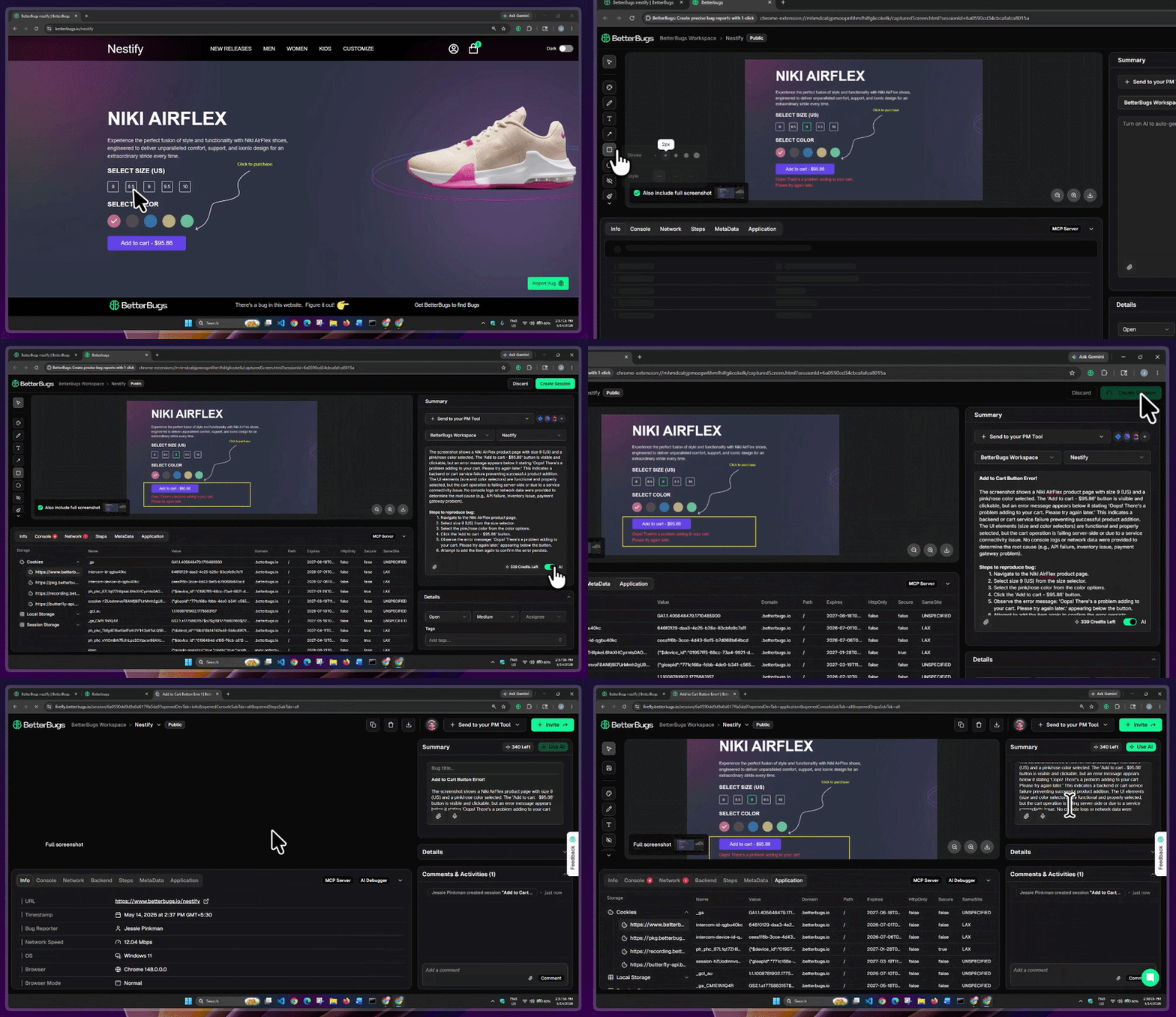
Steps to create a bug report using BetterBugs.io under 60 seconds

Report a bug using BetterBugs Chrome Extension under 60 seconds

Create a Bug Report Using BetterBugs | Easy Steps

  1. Open the extension and capture the bug using the screenshot or screen recording option.
  2. Give your bug report a title and describe the bug. Or, use the “AI” toggle below the description area (for AI generated summary and steps to reproduce).
  3. From the top right dropdowns within the report, select a BetterBugs Workspace and Project (The report would save into this very location after upload).
  4. Hit the “Create Session” button.

Okay! You’re all set with the bug report. A new tab opens with the complete bug report — packed with visual proof, auto-captured developer logs, system info, and all other critical details.
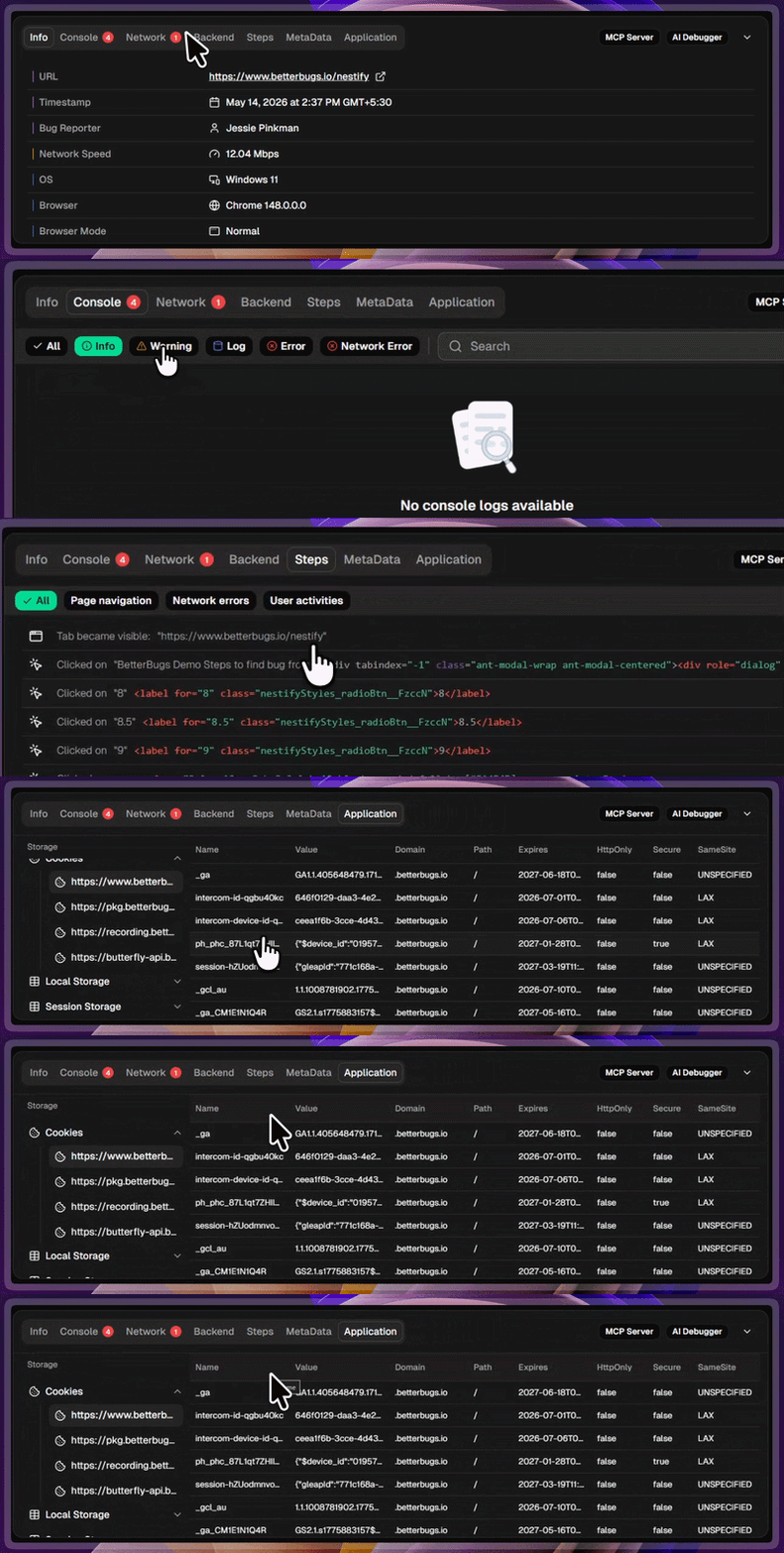
Debugging Details Captured with Every Bug Report | Info, Console, Network, and others

Debugging Details Captured with Every Bug Report | Info, Console, Network, and others

You can share the report link to others using the report link. You can also share the report to your integrated project tools and issue trackers.

BetterBugs.io Key features

  • Unlimited reporting sessions and projects
  • Screenshot, screen recording (up to 15 minutes), and Rewind
  • Webcam overlay and mic support for adding video messages with screen recordings
  • Auto-attaches developer logs from devtools with every bug report
  • Annotatable: Screenshots and video recordings (blurring feature)
  • Get backend event logs (within the bug report) from Sentry integration 
  • Integrate with 15+ project management tools (Jira, Linear, and others), issue trackers (GitHub, GitLab, and others), and communication tools (Slack and MS Teams)
  • AI summary and steps to reproduce
  • Quick sharing features 
  • 2 Years data retention for reports and feedback sessions
  • Integrated AI Debugger tab in a chat-style (within reports)
  • BetterBugs MCP Server (for VS Code, Cursor, Claude Code, and others)
  • Automation for sharing bug reports to one or more PM tools and issue trackers in one click
  • Recording links for customer support and feedback workflows (One time + Reusable)
  • Web SDK Widget for gathering website feedback from end users as technical bug reports (no setup or installations required by end users)
  • Intercom integration (also comes with FinAI Agent support)

BetterBugs.io pricing 

BetterBugs.io comes with a free version and two paid plans:

  • Free version — comes with a slew of robust features; Unlimited reporting sessions, integrations with all project tools and issue trackers (up to 30 integration attempts allowed for premium tools; Unlimited attempts for Slack and MS Teams), MCP Server, Recording links, AI-generated steps and summary (up to 15 times), Unlimited Recording links, Up to 3 users, 2 year data retention
  • Team — $10 /user per month with 10 day free-trial; AI Debugger, Web SDK, AI repro steps and summary (350 generations /month), Unlimited integration attempts for all tools, Webhook, Sentry Integration, Intercom Integration, Private Projects, and all the latest features features
  • Enterprise — Custom Pricing; Comes with SSO/SAML, On-prem data storage option, Custom data retention policy, Audit trails, priority support, and others

Report Bugs 10x Faster and Debug Using MCP

2# Jam.dev

Jam.dev is another bug reporting Chrome extension that you can use for your QA and testing workflows. It enables you to create bug reports with technical details. You can share these reports to your PM tools and issue trackers.

Jam.dev Key features

  • Up to 30 reporting sessions in the FREE version
  • Screenshots, screen recording (up to 5 minutes for free; 15 mins for paid plans)
  • Mic support for screen recordings
  • Instant replay 
  • Developer logs with bug reports
  • Sentry backend logging 
  • AI title and issue repro steps
  • Integrations with PM tools and issue trackers 
  • AI Debugger for Jams
  • Recording links Jams

Jam.dev pricing 

It comes with a free Starter version with essential features (but with capped usage limits) and two paid plans:

  • Team plan starts at $16 per creator/month (14 day-free trial) with Unlimited report sessions, Intercom integration, Backend logging, and other features. 
  • Enterprise plan has custom pricing with advanced features, such as SAML/SSO, custom data retention policy, and others.

Also Read: Best Jam.dev Alternative

3# BugHerd

BugHerd is primarily a visual feedback tool available as a Chrome extension. You can also install it on your website using a JavaScript code snippet. You can use BugHerd to collect, manage, and resolve website issues. The tool works like adding sticky notes on the webpages. You can point, click, and comment directly on website elements to report bugs or provide feedback.

BugHerd Key features

  • Annotatable screenshot capture with technical metadata (URL, Browser, OS, screen resolution)
  • Video feedback features
  • Kanban task board for adding feedback as tasks
  • Integrations with basic project tools and issue trackers
  • Feedback features for websites, Figma files, PDFs, and images 
  • Premium integrations (comes with high tier plans)
  • Custom branding (comes with high tier plans)

BugHerd pricing

BugHerd doesn’t offer a free version. It has four paid tiers. All plans comes with free trial period:

  • Standard at $50 per month — Key offerings with this plan include unlimited client users, unlimited projects, 5 members, Feedback features, capture technical metadata with screenshots.
  • Studio at $80 per month — Houses exact same features as Standard plus more members (up to 25) and more storage.
  • Premium at $150 per month — Packs in all features from Studio plan + up to 25 members, private team commenting, and premium integrations (Jira, Asana, and others)
  • Custom at custom pricing; Comes with all Premium features + SSO, Onboarding and training support, and others.

Also Read: Best BugHerd Alternative

4# Userback

Userback is a user feedback and bug reporting tool for websites. You can use it to collect, manage, and act on visual feedback for websites and apps. The extension comes with robust screen capturing, video recording, feedback and user survey management capabilities. 

Userback Key features

  • Extension for screenshots, screen recording, 
  • Feedback widget
  • Feedback management tools
  • PM tools integrations
  • Zapier automation
  • Developer tools details capture with feedback (come with higher tier paid plans)
  • Session replays (come with higher tier paid plans)

Userback pricing

Userback comes with a free version and three pricing tiers:

  • Free — comes with basic features; Feedback widget, Browser extension, Feedback metadata, 2 seats, 2 projects, and others, unlimited feedback collection, 7 day feedback availability
  • Team at $9 per seat/ month — Unlimited feedback availability, PM tools integration, Zapier automation, and others.
  • Business at $19 per seat/ month — 25 projects, Developer tools, JS SDK, User surveys, and others
  • Business Plus at $29 per seat/ month — Customer support integrations, Webhooks, REST API Access, Customer support integrations, SSO, and others.

Also Read: Best Userback Alternative

5# Marker.io

Marker.io is a bug reporting and website feedback tool available as a Chrome extension. You can use it on any webpage to take a screenshot, mark the problem with arrows or text, and send it to your team. Plus, it also grabs and attaches technical details to the report for debugging purposes. Other than feedback purposes, you can use it for UAT, QA testing, and bug tracking. It’s a well rounded tool. However, it comes only with paid plans with a hefty subscription. Plus, the most useful features come at higher pricing tiers.

Marker.io Key features

  • Screenshot and annotations
  • Environment details and developer tools for reports
  • Integration options (basic and premium tools)
  • Session replay
  • CSV Export
  • Zendesk and Intercom integrations
  • Webhooks

Marker.io pricing

Marker.io has three paid plans:

  • Starter at $59 /month comes with limited features; 1 active website, 3 seats, Basic integrations, screenshots and annotations, Environment details, basic collaboration features
  • Team at $199 / month — 3 active websites, 15 seats, Jira integration, Issue sync, Session replay, Developer tools, and others
  • Custom with Yearly billing only  — Premium integrations, SSO SAML, Audit logs, Webhooks, Zendesk and Intercom integrations, and others.

Also Read: Best Marker.io Alternative

FAQs

Do I need to install a bug reporting extension if I already use Jira?
Can I use BetterBugs.io Chrome extension on my production website to gather customer feedback?
Can I use BetterBugs.io for free?

Yes. BetterBugs.io offers a generous free plan with unlimited reporting sessions, 15-minute screen recordings, Rewind, AI summaries (up to 15 times per month), integrations with all your PM tools, and 2 year data retention.

Does BetterBugs.io connect with other project management tools?
Can I customize the BetterBugs.io Web SDK widget to match my brand?
Written by
Nishil Patel

Nishil Patel | CEO & Founder

Follow

Nishil is a successful serial entrepreneur. He has more than a decade of experience in the software industry. He advocates for a culture of excellence in every software product.

Subscribe to our updates

Meet the Author: Nishil Patel, CEO, and Co-founder of BetterBugs. With a passion for innovation and a mission to improve software quality.

We never spam.